




Let’s face it there’s few things more irritating than settling down to work only to see your laptop take ages just to open a folder. You click, you wait and you exhale in frustration. We’ve all experienced it.
If you’re here, it’s likely that your previously quick device now feels sluggish, as if it’s trudging through thick syrup. The silver lining? You don’t need advanced technical skills to address the sluggish performance in how to fix laptop slow problem in Windows 10. Most slowdowns can be traced back to a few common issues and I will guide you through the process of resolving them step-by-step.
No technical jargon or unnecessary details just straightforward solutions that are user-friendly and effective. Let’s work on restoring your laptop’s speed.
Table of Contents
Step 1: Simply Restart Your Laptop (Really)
It may seem overly simplistic, but you’d be surprised at how many slow laptop problems are resolved with a straightforward restart. Windows 10 can operate for extended periods without a reboot, allowing background tasks, memory leaks and temporary files to accumulate.
Before proceeding:
- save your work and select Start > Power > Restart (avoid Shut Down Windows employs a quick startup feature that doesn’t fully refresh everything).
- After the restart, check how your laptop is performing
After the restart, check how your laptop is performing.
Step 2: How to Fix Laptop Slow Problem in Windows 10 by Scanning for Malware
Malware and adware can significantly decrease performance without you even realizing it. Even if you think you’re cautious a deceptive browser extension or harmful load can consume your CPU resources in the background.
Windows 10 includes a competent built-in security tool. Here’s how to initiate a scan:
- Type Windows Security in the search bar and open it.
- Click Virus & threat protection.
- Select Scan options and choose Full scan.
- Click Scan now and let it run (this may take an hour or more).
While waiting, you might want to purchase Malwarebytes software and license key for an additional check. Run that scan as well, as it may detect issues that Windows Defender misses.
If any threats are discovered and eliminated, be sure to restart your laptop. You may already notice some improvements.
Step 3: Manage Your Startup Applications/programs
One significant factor contributing to a laptop’s slowdown over time is the number of applications that start automatically when you power on your device. Programs like Spotify, Zoom, Discord, Adobe and printer utilities often launch on startup.
Here’s how to regain control:
1. Press Ctrl + Shift + Esc to open Task Manager.
2. Click the Startup tab.
3. Look at the Status column. For any program you don’t need immediately after booting (like torrent clients, game launchers or cloud storage apps), right-click and select Disable.
Be cautious not to disable essential drivers, such as those for graphics or audio; however, third-party applications can typically be disabled safely. Restart your laptop and experience the difference.
Expert tip: To effectively resolve the issue of a slow laptop running Windows 10, ensure that your system starts up with only your antivirus software and potentially one cloud synchronization application (such as OneDrive or Google Drive) activated.
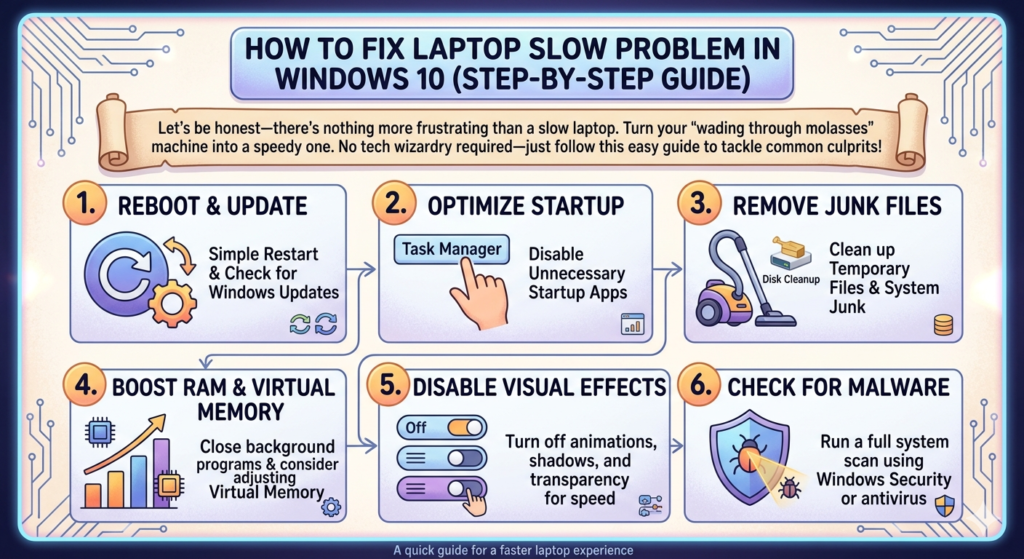
Step 4: Clear Up Disk Space – Your Laptop Needs Breathing Room
Windows 10 operates best when there is at least 10-15% of your hard drive available for temporary files, updates and virtual memory. A nearly full drive will significantly hinder performance.
Let’s clean up at home:
- Open Settings > System > Storage.
- Turn on Storage Sense – it automatically deletes temporary files and old downloads.
- Click Free up space now and check the boxes for:
- Temporary files
- Recycle Bin
- Delivery Optimization Files
- Previous Windows installations (if any these can be huge)
Run Disk Cleanup for a deeper sweep:
- Type Disk Cleanup in the search bar and open it.
- Select your main drive (usually C:).
- Click Clean up system files.
- Check everything listed, then click OK.
If your storage remains low (under 10GB available on a 128GB drive), you may want to transfer personal files to an external drive or utilize cloud storage.
Step 5: Update Your Drivers (Focusing on Graphics and Storage)
Having outdated or damaged drivers can lead to issues ranging from screen lag to sluggish file transfers. The most crucial ones for performance enhancement are the graphics and storage controller drivers.
Here’s a simple approach:
Press Windows + X and select Device Manager.
- Expand Display adapters – right-click your graphics card and choose Update driver > Search automatically for drivers.
- Expand IDE ATA/ATAPI controllers – update any “Standard SATA AHCI Controller” the same way.
For the most reliable and comprehensive updates, go to your laptop manufacturer’s website (like Dell, HP, Lenovo etc.) and input your model number. install the most-latest drivers from there.
Keep in mind: If you haven’t updated drivers previously, this single action can significantly improve your laptop’s speed in Windows 10.
Step 6: Modify Power Settings for Optimal Performance
In Windows 10, the system may limit CPU performance to conserve battery life. This is acceptable when you’re mobile, but if your device is connected to a power source and you desire improved speed, adjustments are necessary.
- Go to Control Panel > Hardware and Sound > Power Options.
- Click Show additional plans.
- Select High performance. (If you don’t see it, click “Create a power plan” and choose High performance.)
To go a step further:
- Click Change plan settings next to High performance.
- Click Change advanced power settings.
- Scroll to Processor power management > Maximum processor state.
- Set both “On battery” and “Plugged in” to 100%.
Now your laptop won’t artificially hold itself back.
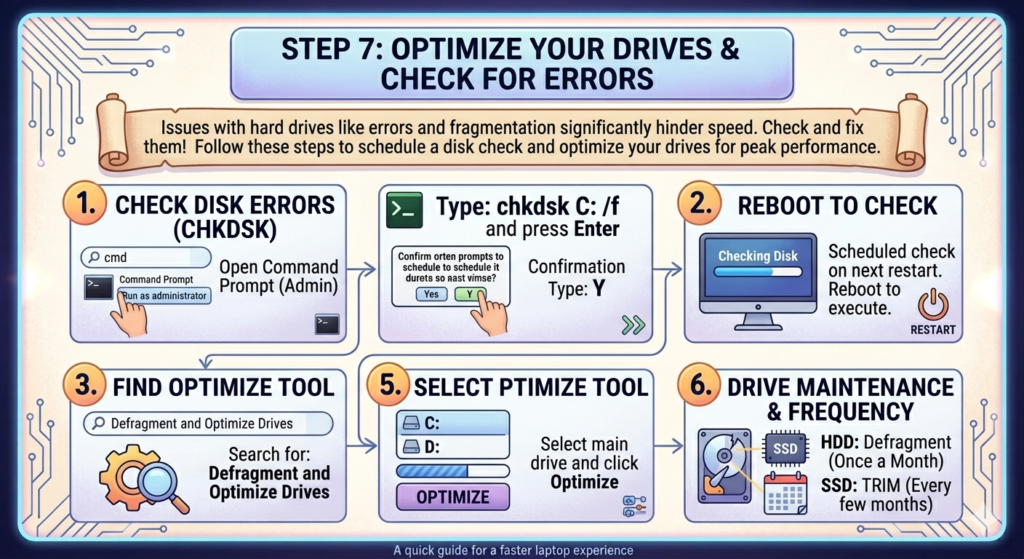
Step 7: Execute CHKDSK and Optimize Your Drives
Issues with hard drives such as errors and fragmentation can significantly hinder file access speeds. Follow these steps to identify and address these problems.
check for disk errors:
open command prompt as administrator (type cmd in search, right-click, run as administrator).
- Type chkdsk C: /f and press enter.
- When asked to schedule the check on next restart, type Y and reboot.
optimize your drive:
- Type Defragment and Optimize Drives in the search bar.
- Select your main drive and click Optimize.
- If you have an SSD, Windows will TRIM it (that’s good). If you have an HDD, it will defragment (also good).
Do this once a month for HDDs, or every few months for SSDs.
Step 8: Reduce Visual Effects and Animations
Windows 10 loves fancy animations fading menus, sliding taskbars, transparent windows. They look nice, but they eat up resources, especially on older laptops.
Turn them down without losing usability:
1. Type Performance in the search bar and select Adjust the appearance and performance of Windows.
2. In the Visual Effects tab, select Adjust for best performance (this turns everything off).
3. Or choose Custom and keep only these:
Smooth edges of screen fonts
Show thumbnails instead of icons
Use drops shadows for icon labels
Click Apply and OK. Your laptop will feel instantly snappier, especially if you have 4GB of RAM or less.
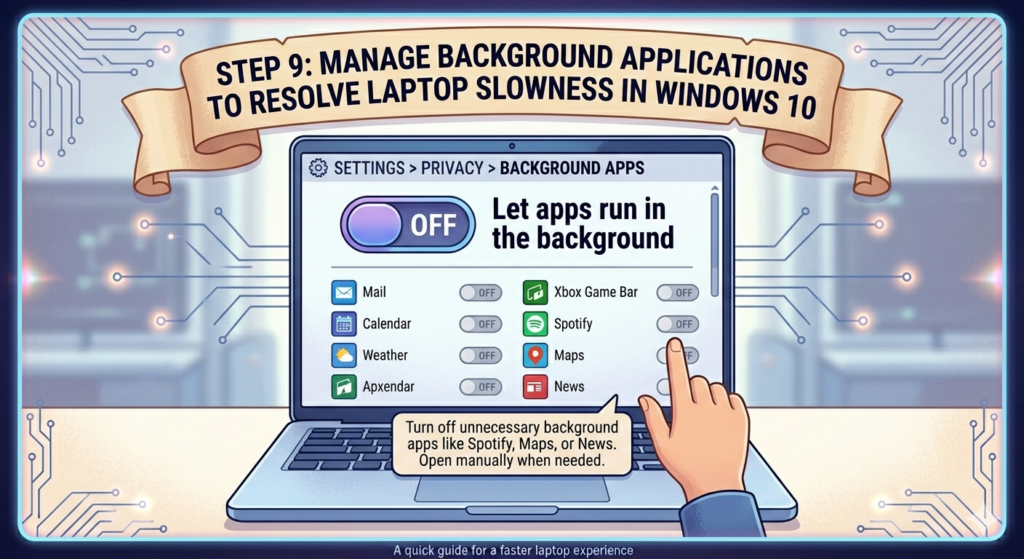
Step 9: Manage Background Applications to Resolve Laptop Slowness in Windows 10
Many apps run in the background even when you never use them mail, calendar, weather, Xbox Game Bar and more. Each one sips CPU and RAM.
Turn them off:
- Go to Settings > Privacy > Background apps.
- Toggle Let apps run in the background to Off.
- Scroll down and individually turn off any apps you don’t need running all the time (like Spotify, Maps or News).
You can always open these apps manually when needed. This change alone can free up significant resources.
Step 10: Utilize System File Checker and DISM
Many apps run in the background even when you never use them mail, calendar, weather, Xbox Game Bar and more. Each one sips CPU and RAM.
Turn them off:
- Go to Settings > Privacy > Background apps.
- Toggle Let apps run in the background to Off.
- Scroll down and individually turn off any apps you don’t need running all the time (like Spotify, Maps or News).
You can always open these apps manually when needed. This change alone can free up significant resources.
Step 11: Perform a Clean Boot to Detect Conflicts
A clean boot starts Windows with only essential services and drivers. If your laptop runs fine in clean boot mode, then a third-party app or service is causing the slowdown.
Here’s how:
- Type msconfig in the search bar and open System Configuration.
- Go to the Services tab.
- Check Hide all Microsoft services, then click Disable all.
- Go to the Startup tab and click Open Task Manager.
- Disable every startup item listed.
- Restart your laptop.
Now test your laptop. If it’s fast again, you know the problem is one of the disabled services or startup apps. Re-enable them one by one (rebooting each time) until you find the culprit then uninstall or update that software.
Step 12: Consider Hardware Upgrades – The Ultimate Solution
If you’ve exhausted all previous methods and your laptop remains sluggish; it may be time to think about hardware upgrades. Fortunately, a new laptop isn’t necessary. Two modifications can revitalize an older device.
Replace your HDD with an SSD
This upgrade is the most impactful. Switching from a traditional hard drive to a solid-state drive (SSD) can transform a five-year-old laptop, reducing boot time from two minutes to just 15 seconds and allowing programs to launch instantly.
Cost: Between $40 and $100 for a 500GB SSD
Difficulty: Moderate (there are numerous YouTube tutorials available for specific laptop models)
Add additional RAM
If your laptop has 4GB of RAM, upgrading to 8GB will enable you to keep more browser tabs and applications open without slowdowns. For those with 8GB engaged in resource-intensive tasks like video editing or running virtual machines, increasing to 16GB is advisable.
Cost: Ranges from $30 to $80 for a compatible RAM stick
Difficulty: Easy to moderate
To check your current specifications:
Press Ctrl + Shift + Esc and navigate to the Performance tab. Examine Memory (RAM) and Disk (HDD or SSD).
Implementing even one of these upgrades will often resolve slow laptop performance in Windows 10 for most users.
Step 13: Reset or Reinstall Windows 10 (Last Resort)
If all else fails—and you’ve taken the necessary steps to back up your files a complete reset might be the solution. Windows 10 offers a built-in reset function that allows you to reinstall the operating system while either keeping your personal files or erasing everything.
Go to Settings > Update & Security > Recovery.
Under Reset this PC, click Get started.
- Choose Keep my files (apps and settings will be removed, but documents and photos stay) or remove everything (full clean install).
A fresh install of Windows eliminates years’ worth of accumulated digital clutter, conflicting drivers and registry discrepancies. It’s akin to acquiring a new laptop without the cost.
