
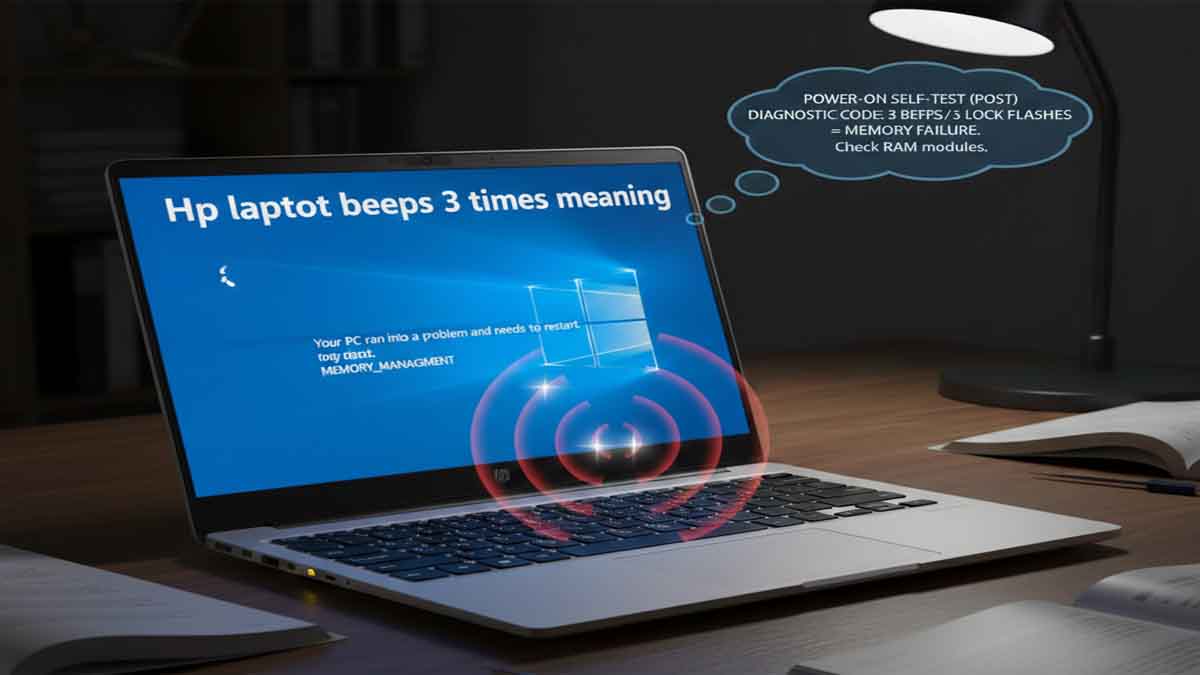
Have you ever pressed the power button on your HP laptop only to be greeted by three ominous beeps and a black screen instead of the familiar startup process? This experience can be worrying but those beeps are actually your computer’s way of communicating. They are part of a diagnostic system called the Power-On Self-Test (POST).
When an HP laptop emits three beeps at startup a pattern often accompanied by the Caps Lock LED flashing three times it is signaling a specific hardware failure that is preventing a normal boot. Understanding this code is the first step to getting your computer working again.
Table of Contents
Proper checking this bios with operating systems after Hp laptop beeps 3 times
When troubleshooting the “3 beeps” error on an HP laptop accessing the startup menus is often a critical step for running diagnostics or resetting the BIOS. However, the beep error itself can sometimes prevent these menus from appearing or cause the system to freeze when you try to open them.
Here are the essential startup menus, how to access them and what to do if they don’t work.

| Key to Press | Menu Name | Primary Function | Useful For 3-Beep Error |
| Esc | Startup Menu | Provides one-time boot options (F9 for boot device list F10 for BIOS, F2 for diagnostics). | Quick access to diagnostics and BIOS settings. |
| F10 | BIOS Setup Utility | Configure hardware settings, restore defaults. | Resetting BIOS to default (often key step). |
| F2 | System Diagnostics (UEFI) | Run hardware tests to check memory, storage etc.. | Running an Extensive Test to identify failing components. |
| F9 | Boot Device Menu | Select a one-time boot device (e.g., USB drive). | Booting from recovery media if the main drive fails. |
Troubleshooting Access Problems Hp laptop beeps 3 times
If pressing the keys doesn’t bring up the menus try these steps in order:
- Isolate Hardware & Reset Power: Disconnect all external devices (USB drives, monitors, printers) and perform a hard power reset:
- Shut down and unplug the charger.
- Remove the battery if it’s removable.
- Hold the power button for 15-30 seconds to drain residual charge.
- Reconnect power (and battery) and try the Esc key again.
- Use the Correct Keyboard: Some laptops may not recognize key presses from non-original or external keyboards during startup. If possible, use the laptop’s built-in keyboard.
- Attempt BIOS Recovery: If the system freezes on the HP logo or you cannot enter BIOS, you can try a BIOS recovery key combination:
- With the laptop off, press and hold the Windows key and the B key.
- While holding them, press and hold the power button for 2-3 seconds.
- Release the power button but keep holding Win+B until you see a BIOS update screen or hear beeps (it may take 40 seconds).
- Reset CMOS to Clear BIOS: A corrupted BIOS setting can cause boot and access issues. This often requires opening the laptop to either:
- Remove the CMOS battery for a few minutes.
- Locate the CLR_CMOS or BIOS reset jumper on the motherboard (consult your service manual).
Next Steps If You Get Access
Once you successfully enter the relevant menus, focus on these actions:
- In BIOS Setup (F10): Press F9 to “Load Setup Defaults,” then F10 to “Save and Exit”. This can resolve configuration conflicts.
- In System Diagnostics (F2): Run the Extensive Test. If any test fails, note the 24-digit Failure ID code; this is crucial information for repair.
What Does Three Beeps Mean on an HP Laptop?
The three-beep pattern on HP computers is a POST error code indicating a hardware problem. Based on HP’s official documentation and widespread user report the most common interpretation is a memory (RAM) error. Essentially, the laptop’s basic input/output system (BIOS) has failed to properly read, detect or initialize the system memory during its initial check.
In some HP models this same pattern of three beeps and three Caps Lock flashes has a more specific definition from HP: “The embedded controller has timed out waiting for BIOS to return from graphics initialization or failed to initialize a graphics output device”. This points toward a potential graphics subsystem failure, which could involve the dedicated graphics card or the integrated graphics on the processor.
Whether the root cause is RAM or graphics related the outcome is the same: the startup process halts and you are left with a non-functional laptop. The beeps are a crucial clue that the problem is hardware-related, not a simple software or Windows issue.
How to Troubleshoot and Fix the Three-Beep Error
Fixing this issue involves a process of systematic hardware troubleshooting. Start with the simplest and safest solutions before moving to more complex ones. The following ladder outlines the recommended troubleshooting path.
| Step | Action Area | Specific Actions to Take | Expected Outcome & Next Step |
| 1 | Preliminary Checks | Ensure power is connected; verify external monitor shows no signal; disconnect all peripherals (USB, external drives). | Confirms the problem is internal. If an external monitor works, the issue may be the laptop screen. |
| 2 | Basic Hardware Reset | Perform a hard reset: shut down, unplug, remove battery (if removable), hold power button for 60 seconds. Reconnect and try booting. | Clears residual electrical charge (resets capacitors). If successful, the problem may have been temporary. |
| 3 | Primary Focus: Memory (RAM) | Reseat the RAM: open access panel, remove RAM sticks, clean contacts, reinsert firmly. Test with one stick at a time in different slots. | Fixes loose connections. If a specific stick or slot fails, you’ve identified the faulty component. |
| 4 | Deep Cleaning | Use compressed air to blow dust from RAM slots, fans and heatsinks. For persistent grime, clean RAM contacts with isopropyl alcohol. | Removes dust causing overheating or poor electrical contact. Overheating can trigger memory errors. |
| 5 | Processor & Graphics Check | Reseat the CPU (for advanced users only) ensure the heatsink/fan is properly attached and clean. For dedicated graphics ensure the card is seated correctly. | Addresses overheating and connection issues. A loose CPU or clogged fan can cause failures. |
| 6 | Motherboard & BIOS | Reset BIOS by removing the CMOS battery for a few minutes. Visually inspect the motherboard for bulging capacitors or burn marks. | A BIOS reset can clear configuration errors. Physical damage indicates a motherboard failure. |
| 7 | Seek Professional Help | If all else fails, contact HP Support or a reputable repair shop. This is required for suspected motherboard or graphics chip failure. | Technicians can run advanced diagnostics and perform component-level repairs or replacements. |
Detailed Troubleshooting Steps
- Reseating and Testing RAM: This is the most effective fix for the three-beep error. Turn off the laptop, unplug it and remove the battery. Open the memory compartment on the bottom (consult your manual for its location). Release the side clips to pop the RAM stick out. Gently clean the gold contacts with a dry, lint-free cloth. Reinsert the stick at a 45-degree angle and press down firmly until the clips snap back into place.
For laptops with multiple RAM sticks, test them one at a time in each slot. This “isolation” method can identify if a specific stick is dead or if a particular slot on the motherboard is faulty. If the laptop boots successfully with one stick but beeps with another, you have found a bad RAM module. - The Importance of Cleaning: Dust is a major enemy of electronics. A buildup can cause overheating, which leads to memory and graphics failures, or it can physically interfere with electrical contacts. Use a can of compressed air to blow out dust from the RAM slots, cooling fans and heat sinks. For stubborn corrosion on RAM contacts lightly dampen a cotton swab with 99% isopropyl alcohol, gently wipe the contacts, and let them dry completely before reinserting.
- Advanced Component Checks: If RAM is not the culprit, the issue may lie with the processor or graphics. A loose CPU or a severely clogged and overheating cooling system can cause initialization failures. Reseating a CPU is complex and requires thermal paste only attempt this if you are confident. Similarly on laptops with a dedicated graphics card, ensuring it is properly seated is important. In many modern laptops, however, the graphics chip is soldered to the motherboard.
- When to Contact Professionals: If you have methodically tried all the above steps and the three beeps persist the problem is likely a deeper hardware fault. As stated in an HP support reply a consistent 3-beep, 3-flash error often requires contacting support for repair due to graphics or video failure. This could mean a failed graphics chip or a fundamental problem with the laptop’s motherboard. If your laptop is still under warranty HP repair services will typically be free of charge.
Preventing Future Beep Code Problems
Preventive maintenance can save you from future startup headaches:
- Handle with Care: Avoid jarring impacts or drops that can loosen internal components like RAM.
- Ensure Proper Ventilation: Always use your laptop on a hard, flat surface. Avoid using it on beds or couches where fabric can block air intakes and cause overheating.
- Keep It Clean: Periodically use compressed air to clean dust from the vents.
- Secure Your Updates: Avoid interrupting critical system updates, as a corrupted BIOS update (though rare) can cause serious boot issues.