



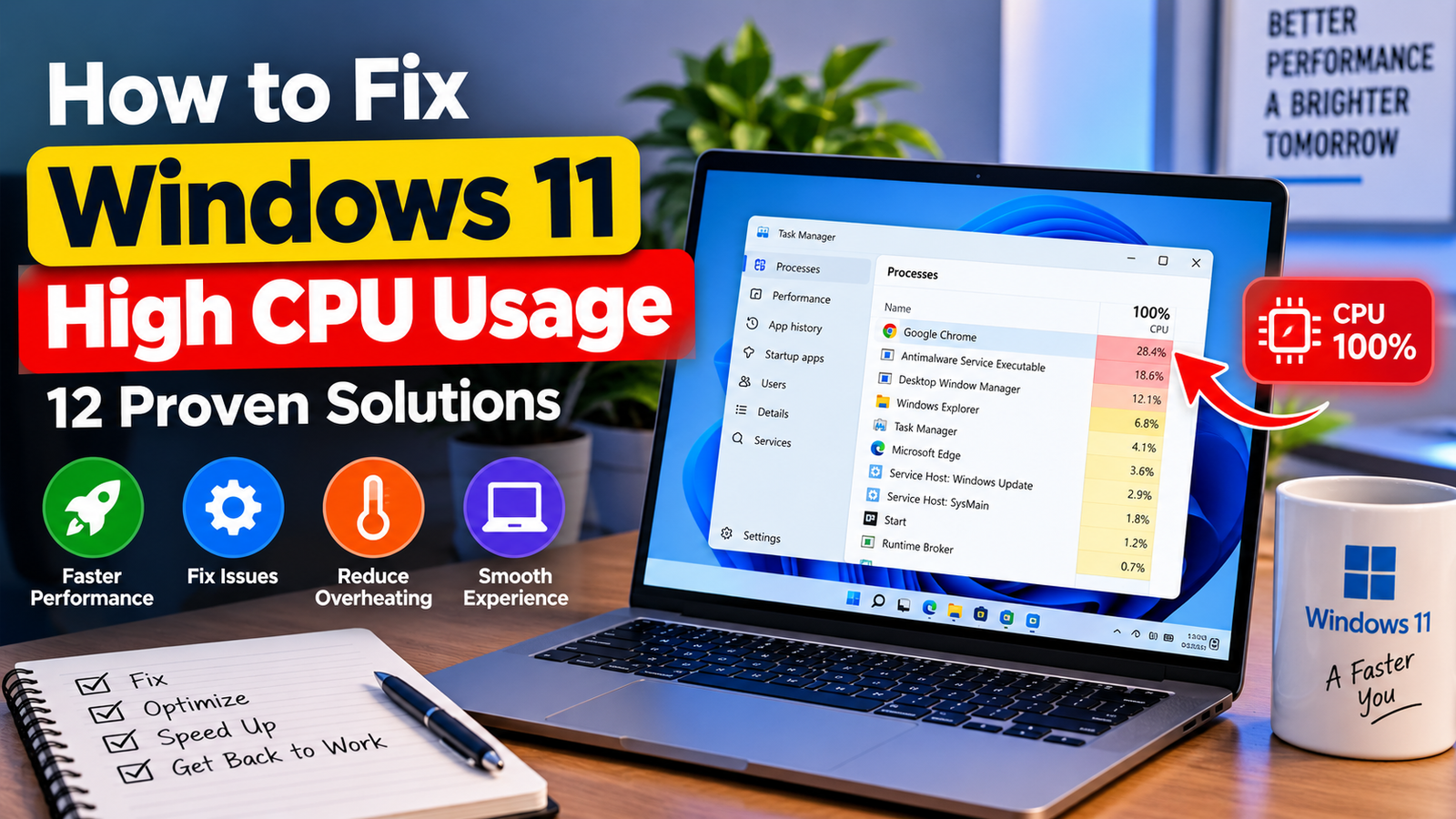
High CPU usage in Windows 11 can make the PC sluggish, freeze applications, create loud fans and hurt gaming performance. Fortunately, a high CPU usage is not always a sure sign that the processor is dying. Instead, high CPU usage can often be traced to a background application, Windows service, driver, malware, startup program or process that’s stuck.
In this guide, we’ll explain 12 proven ways to fix Windows 11 high CPU usage, starting from the simplest solutions and working towards more advanced steps.
Table of Contents
What Is High CPU Usage in Windows 11?
CPU usage means how much of the processor’s total power is currently being used.
You can see it in Task Manager:
- Press Ctrl + Shift + Esc.
- Click Processes.
- Look at the CPU column.
- Click the CPU column to sort processes from highest to lowest usage.
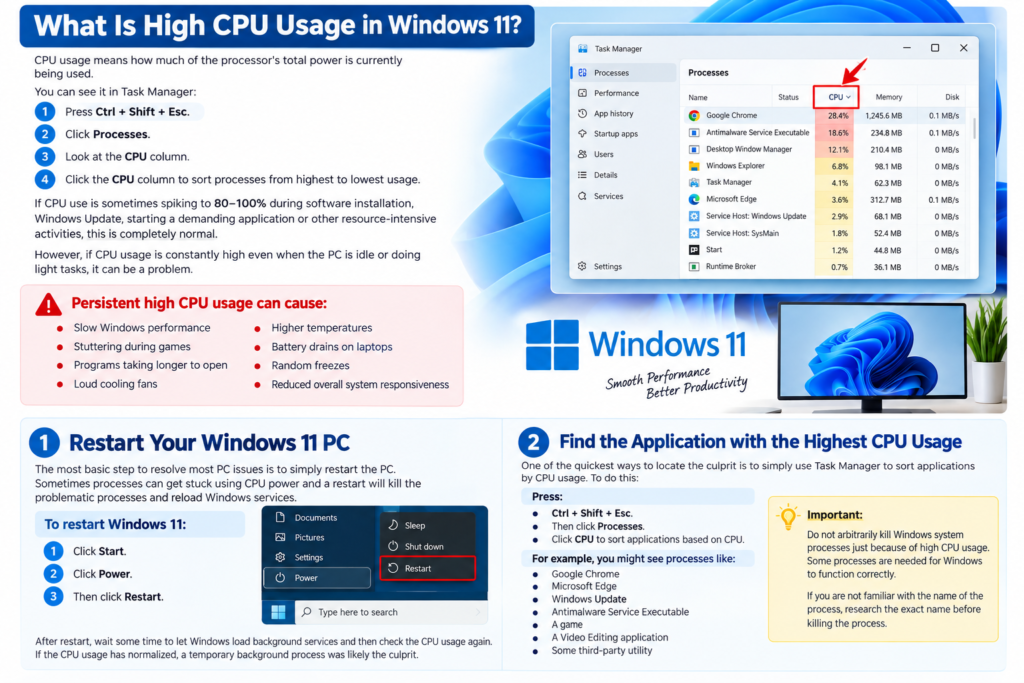
If CPU use is sometimes spiking to 80-100% during software installation, Windows Update, starting a demanding application or other resource-intensive activities this is completely normal.
However, if CPU usage is constantly high even when the PC is idle or doing light tasks
Persistent high CPU usage can cause:
- Slow Windows performance
- Stuttering during games
- Programs taking longer to open
- Loud cooling fans
- Higher temperatures
- Battery drains on laptops
- Random freezes
- Reduced overall system responsiveness
1. Restart Your Windows 11 PC
The most basic step to resolve most PC issues is to simply restart the PC. Sometimes processes can get stuck using CPU power and a restart will kill the problematic processes and reload Windows services.
To restart Windows 11:
- Click Start
- Click Power
- Then click Restart
After restart, wait some time to let Windows load background services and then check the CPU usage again. If the CPU usage has normalized, a temporary background process was likely the culprit.
2. Find the Application with the Highest CPU Usage
One of the quickest ways to locate the culprit is to simply use Task Manager to sort applications by CPU usage. To do this:
Press:
- Ctrl + Shift + Esc
- Then click Processes
- Click CPU to sort applications based on CPU
For example, you might see processes like:
- Google Chrome
- Microsoft Edge
- Windows Update
- Antimalware Service Executable
- A game
- A Video Editing application
- Some third-party utility
If one application is using a suspiciously high amount of CPU, try closing that application and see whether the CPU usage normalizes.
Important:
Do not arbitrarily kill Windows system processes just because of high CPU usage. Some processes are needed for Windows to function correctly.
If you are not familiar with the name of the process, research the exact name before killing the process.
3. Disable Unnecessary Startup Applications
Some applications launch every time Windows starts and these can eat into CPU.
How to disable startup apps:
- Open Task Manager.
- Select Startup apps.
- Review the applications listed.
- Right-click an unnecessary application.
- Select Disable.
Review the applications and right-click an unnecessary application to disable it
Try disabling applications that you recognize but do not need right away after the PC boots,
such as:
- Game launchers
- Meeting applications
- Cloud utilities
- Manufacturer utilities
- Update managers
- Some third-party tools
However, do not disable security software or hardware drivers from unknown manufacturers unless you know what they do.
4. Check Windows Update Windows 11 High CPU Usage
Windows 11 might be using a lot of CPU during download, install or processing of updates. To check Windows Update:
- Open Settings
- Select Windows Update
- Click Check for updates
- Install any available updates and restart your PC if windows request it.
If Windows update is currently running, CPU usage may also temporarily peak.
After the update process completes, check Task Manager again. It is also important to keep Windows 11 up to date, as Microsoft regularly releases performance, reliability and security updates for Windows.
5. Update Your Device Drivers
Outdated or incompatible drivers can sometimes cause excessive CPU usage. Pay additional attention to:
- Chipset drivers
- Graphics drivers
- Network drivers
- Storage drivers
- Audio drivers
For a Windows 11 PC, it is recommended to get drivers from your PC or motherboard manufacturer’s official website, whenever possible. For example, if you have a Dell, HP, Lenovo, ASUS, Acer or MSI computer, check their official site for your exact PC model.
For custom PCs, check the motherboard manufacturer’s website.
Don’t install random driver packages
Never install random drivers from untrusted sources. Incorrect or altered drivers can cause additional issues.
6. Scan Windows 11 for Malware
Malware can silently run in the background and eat away at CPU resources. Windows 11 comes with Microsoft Defender Antivirus, which can do security scans without a dedicated third-party antivirus.
To scan your PC:
- Open Windows Security
- Select Virus & threat protection
- Click Scan options
- Select an appropriate scan.
- click Start scan
If you suspect malware, a Full scan would be appropriate, although it will take considerably longer. Never ignore an unusual process just because it has a seemingly normal name. Malware can sometimes appear to be a Windows process.
7. Check Browser Tabs and Extensions
Browsers can be huge CPU hogs, especially if you have a lot of tabs, videos, web applications or extensions running at the same time.
If Google Chrome, Microsoft Edge or another browser is using a lot of CPU:
- Close tabs that you are not using
- Remove unnecessary extensions
- Restart the browser
- Update the browser if needed
- Check the browser’s own task manager if available
For example, a web page with video, animations, games or other complex web application may constantly tax the CPU. You can try closing browser tabs one by one to see if a particular website is the culprit.
8. Reduce Background Applications
Windows 11 and applications can run background processes, even if you are not actively using them. Go through installed applications and remove programs that you no longer need.
To do this:
Go to: Settings -> Apps -> Installed apps
Go through the list and uninstall applications that you do not need
Avoid uninstalling:
- Hardware drivers
- Microsoft components
- Security software
- System utilities
- Manufacturer specific tools
If you are not sure what an application does, research the application before uninstalling it.
9. Check for Overheating and Poor Cooling
High CPU temperatures do not always cause high CPU usage, but can lead to processors reducing performance (known as thermal throttling).
which can make the PC feel sluggish. Common reasons for high temperatures:
- Dust in the PC
- Blocked laptop vents
- Poor airflow
- Failed or slow cooling fans
- Old thermal paste
- High ambient temperature
For desktops, make sure that the PC is in a well-ventilated area. Avoid using laptops on beds or other surfaces that can block vents. If temperatures are unexpectedly high, it is better to look at the cooling system rather than changing Windows settings.
10. Perform a Clean Boot
If you are unable to identify the third-party program that causes high CPU usage, you can perform a clean boot to isolate the issue. Clean boot essentially runs Windows with a minimal set of startup programs and services.
Here’s how to do a clean boot:
- Press Windows key + R
- Type msconfig
- Click Enter
- Open the Services tab
- Check Hide all Microsoft services
- Click Disable all
- Open the Startup tab
- Open Task Manager
- Disable unnecessary startup applications
- Then restart the PC
Important:
Make sure to check Hide all Microsoft services before disabling services. Do not blindly disable Microsoft services.
After reboot, check if the CPU usage is normal. If everything is normal, you can re-enable third-party services and startup programs until you find the application that causes high CPU usage.
11. Repair Corrupted Windows System Files
Corrupted system files can sometimes cause Windows to behave unexpectedly, including using lots of resources.
Windows includes some built-in tools that can automatically check and repair corrupted system files.
Run System File Checker:
- Right-click Start
- Select Terminal (Admin)
- Type:
sfc /scannow
- Click Enter
- Let the scanning and repairing process complete. This may take some time, depending on your system.
If Windows reports that it repaired any files, reboot your PC and check CPU usage again.
You can also use Microsoft’s DISM tools when Windows component corruption is suspected.
12. Reset or Reinstall Windows 11 as a Last Resort
If CPU usage is still extremely high even after investigating applications, drivers, malware, Windows services and hardware temperatures, it may be that the Windows installation itself is contributing to the problem.
Before resetting Windows,
- Back up important documents.
- Back up photos and videos.
- Save browser passwords and important data.
- Make sure you have software installation files or licenses where necessary.
Windows 11 provides reset options:
Settings -> System -> Recovery -> Reset this PC
It is best to avoid resetting Windows as a first option.
What CPU Usage Is Normal in Windows 11?
There’s no one CPU percentage that is always normal. For example:
- 0-10% CPU: common when idle
- 10-30% CPU usage: could be normal
- 50-80% CPU: expected under certain heavy workloads
- 90-100% CPU: expected under intense workloads, but not normal when idle.
The thing that matters is what the PC is doing when CPU usage reaches that level.
A gaming PC running a heavy game could legitimately stay near 100% CPU. A PC sitting on the desktop screen shouldn’t usually stay at 100% for long periods of time without some background activity.
When Should You Worry About High CPU Usage?
You should investigate the cause if:
- CPU usage is high even when idle
- The computer suddenly becomes sluggish
- Fans are constantly spinning fast
- Computer temperatures are high
- Applications freeze frequently
- CPU usage just started after installing an unknown application
- A suspicious process always uses CPU power
