



Are you having trouble with a USB device not appearing in Windows 11 after attaching it to your PC or laptop? This is a relatively common occurrence that can be caused by a faulty USB port, outdated or missing drivers, no drive letter, file-system issues or errors in how Windows is set up to handle USB devices.
In most cases, you don’t need to buy a new USB drive.
In this guide, we’ll show you 12 practical ways to fix a USB device that is not showing in Windows 11.
Table of Contents
Why Is My USB Device Not Showing in Windows 11?
There are several possible reasons why your USB device is not showing up in Windows 11, including:
- Faulty USB port
- Damaged USB cable
- Outdated or corrupted USB drivers
- USB drive with no drive letter
- USB drive is offline
- File-system corruption
- Windows USB power-management issue
- Damaged USB device
- Disk Management configuration problem
Now, let’s walk through some of the easiest remedies.
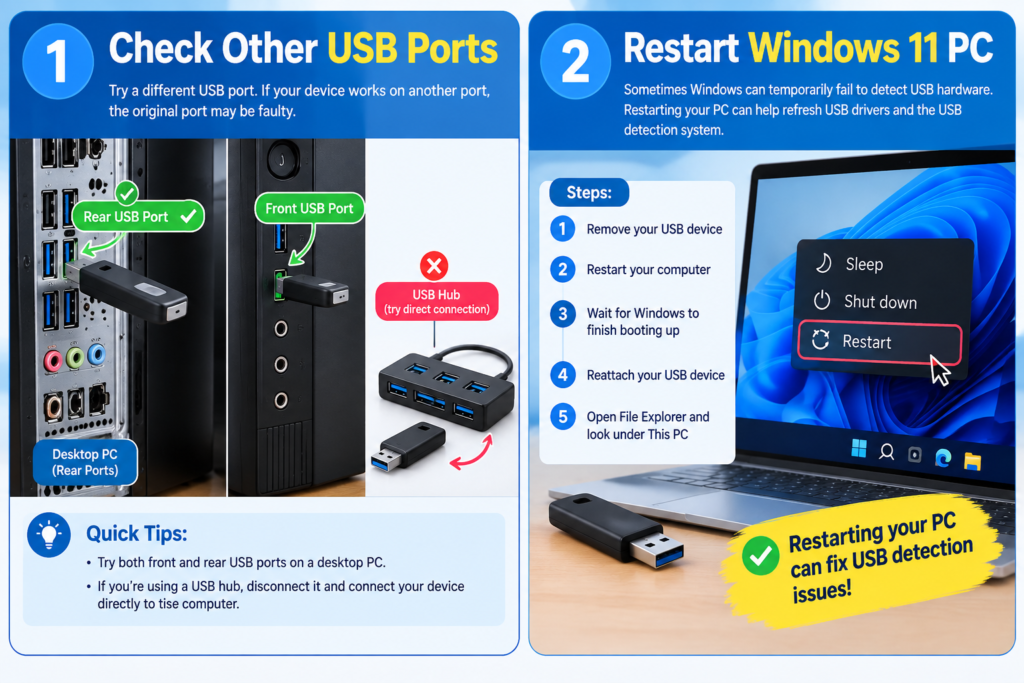
1. Check Other USB Ports
First, try plugging your USB device into a different USB port. If you are using a desktop PC, test the front and rear USB ports. If your USB device works on a different port, it is likely that the initial USB port is faulty.
Another useful tip is to try using another USB hub if you are currently using one. Instead, try plugging your USB device into your computer directly.
2. Restart Windows 11 PC
Sometimes Windows can temporarily fail to detect USB hardware. The easiest way to resolve this is to restart your PC and see if the issue is resolved.
Steps:
- Remove your USB device
- Restart your computer
- Wait for Windows to finish booting up
- Reattach your USB device
- Open File Explorer and look under This PC
Restarting your PC can help refresh USB drivers and Windows’ USB detection system.
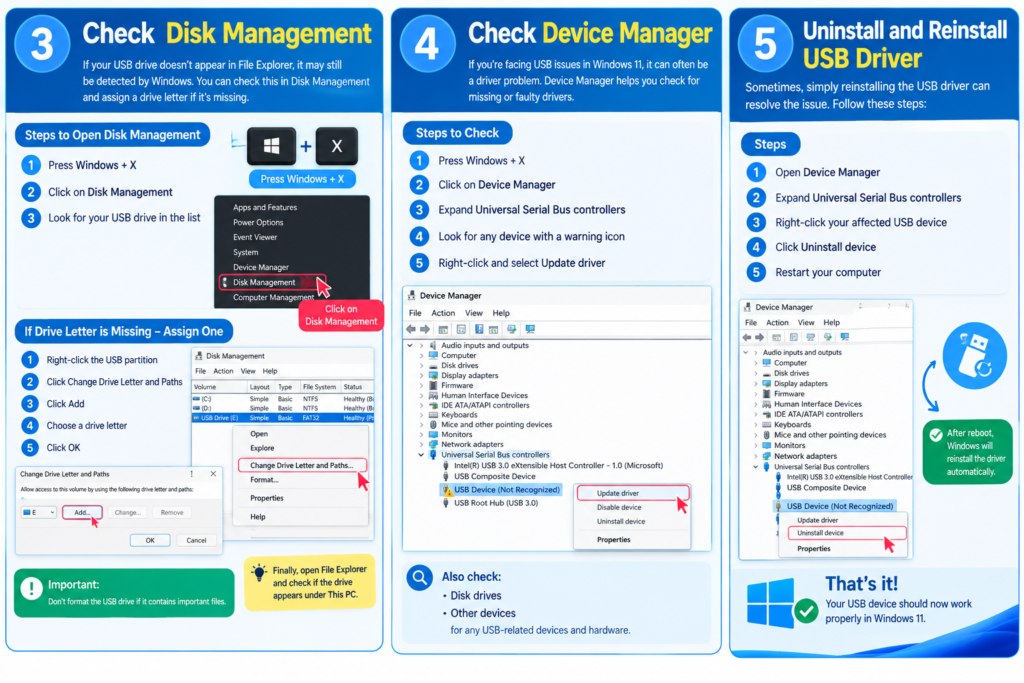
3. Check Disk Management
It is normal for some USB drives to not appear in Windows File Explorer, but they are nevertheless detected by Windows. You can confirm this by opening Disk Management. In some cases, the drive letter may be missing, so you can assign one.
You can check this using Disk Management.
Steps:
- Press Windows + X
- Click on Disk Management
- Look for your USB drive in the list
If you can see your USB drive, but it does not have a drive letter assigned, you can assign one by following these steps:
- Right-click the partition for your USB device
- Click Change Drive Letter and Paths
- Click Add
- Choose a drive letter
- Click OK
Finally, open File Explorer and check the drive.
Important: Don’t format the USB drive if it contains important files.
4. Check Device Manager
If you are having issues in windows 11 with USB devices in general, it can often be a driver issue. To check this:
Steps:
- Press Windows + X
- Click on Device Manager
- Open up Universal Serial Bus controllers
- Look for any device with a warning icon
- Right-click and select Update driver
You can also check Disk drives and other devices for any USB-related devices and hardware.
5. Uninstall and Reinstall USB Driver
Sometimes, simply reinstalling USB drivers can resolve the issue.
To do this:
- Open up Device Manager
- Open up Universal Serial Bus controllers
- Right-click your affected USB device
- Click Uninstall device
- Once you have uninstalled the device, reboot your computer.
Once you have rebooted, Windows should reinstall the necessary drivers by default.
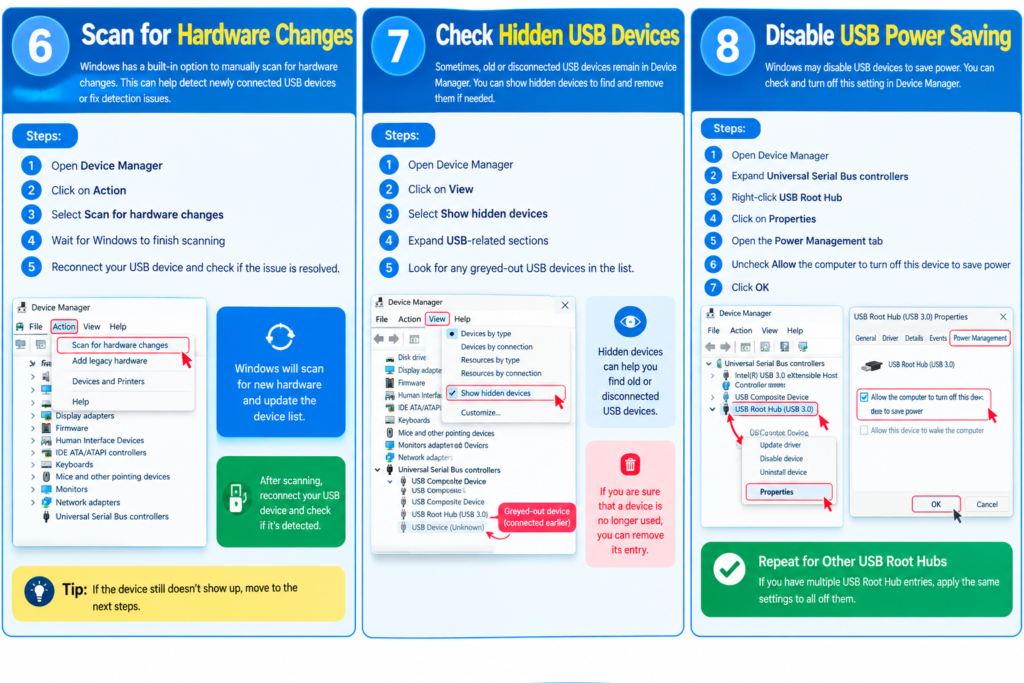
6. Scan for Hardware Changes
Windows has a built-in option to manually scan for hardware changes.
To do this:
- Open Device Manager
- Click on Action
- Select Scan for hardware changes
- Wait for Windows to finish scanning
Reconnect your USB device and check whether the issue is resolved
7. Check Hidden USB Devices
Sometimes, you may have old or disconnected USB devices in Device Manager. You can check for hidden devices in Device Manager.
To do this:
- Open Device Manager
- Click on View
- Select Show hidden devices
- Expend USB-releted sections.
- Now, look for any greyed-out USB devices in the list.
If you are aware there are disconnected devices, you can remove these entries.
8. Disable USB Power Saving
Windows may disable USB devices to save power. You can check your USB power-saving settings in Device Manager.
To do this:
- Open Device Manager
- Open up Universal Serial Bus controllers
- Right-click USB Root Hub
- Click on Properties
- Open up the Power Management tab
- If available, uncheck Allow the computer to turn off this device to save power
- Click OK
Repeat the process for any other USB Root Hub entries if available
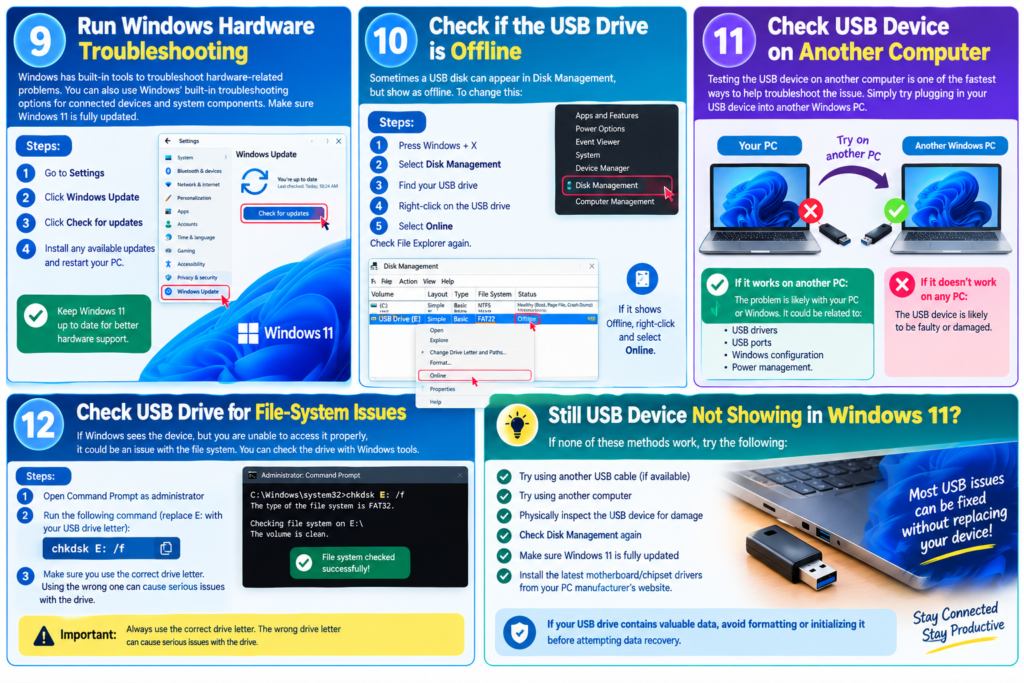
9. Run Windows Hardware Troubleshooting
Windows has built-in tools to troubleshoot hardware-related problems.
You can also use Windows’ built-in troubleshooting options for connected devices and system components. It is also a good idea to make sure that Windows 11 is fully updated.
To do this:
Go to Settings > Windows Update > Check for updates
Install any available updates and restart your PC
10. Check if the USB Drive is Offline
Sometimes a USB disk can appear in Disk Management, but show as offline. To change this:
- Press Windows + X
- Select Disk Management.
- Find the USB driver.
- Right-click on the USB drive.
- Select Online.
Check File Explorer again
11. Check USB Device on Another Computer
Testing the USB device on another computer is one of the fastest ways to help troubleshoot the issue.
Simply try plugging in your USB device into another Windows PC.
If the device works on another PC:
but not on your PC, this suggests that there is an issue with Windows or your PC in general. This could be related to:
- USB drivers
- USB ports
- Windows configuration.
- even power management.
If the device does not work on any PC, it is likely that the device is faulty.
12. Check USB Drive for File-System Issues
If Windows sees the device, but you are unable to access it properly, it could be an issue with the file system.
You can check the drive with Windows tools
Open Command Prompt as administrator and run the following command, replacing E: with your USB drive:
chkdsk E: /f
Make sure you always use the correct drive letter. Using the wrong one can cause serious issues with the drive in question.
Still USB Device not Showing in Windows 11?
If none of these methods work, try the following:
- Try using another USB cable (if available)
- Try using another computer
- Physically inspect the USB device for damage
- Check Disk Management again
- Make sure Windows 11 is fully updated
- Install the latest motherboard/chipset drivers from your PC manufacturer’s website
If your USB drive contains valuable data, avoid formatting or initializing it before attempting data recovery.
