

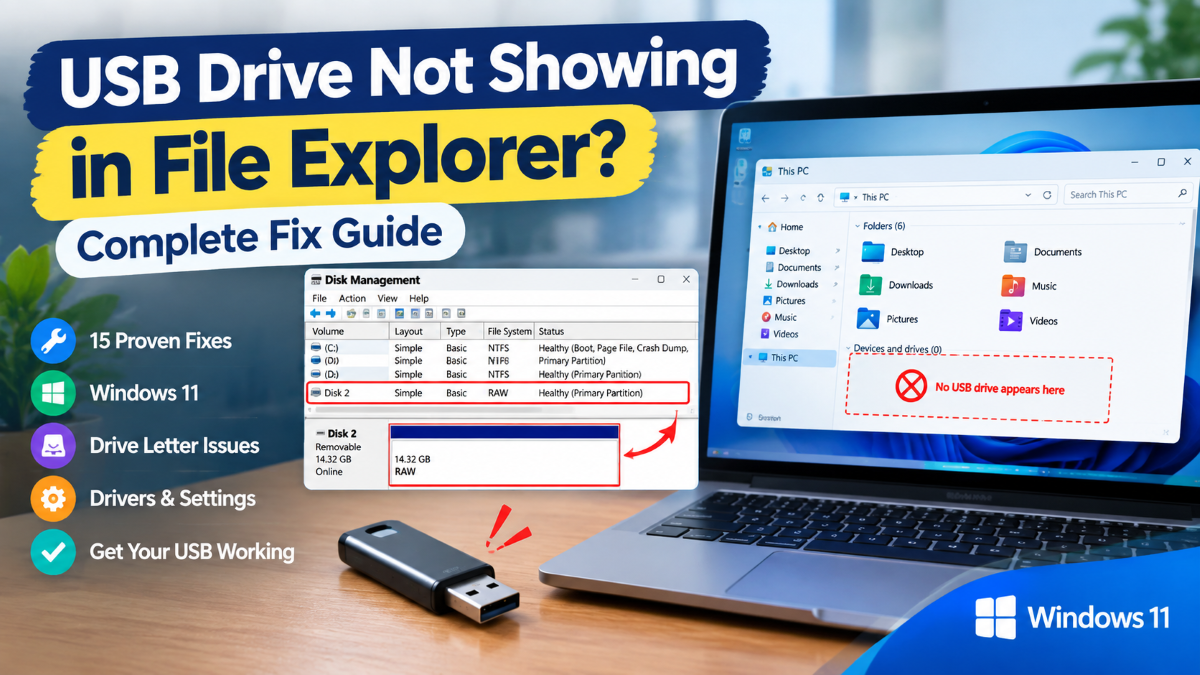
Inserting a USB flash drive and discovering that it does not appear in File Explorer can be incredibly annoying especially if you need it.
Sometimes Windows detects the USB drive but does not assign it a drive letter. Other times the drive appears in Disk management but has an unallocated partition an unsupported file system or is offline. USB drivers, damaged USB ports power-management settings or a physically faulty drive can all be to blame for a USB drive not showing up in your PC.
The good news is that you should be able to resolve the issue without having to throw the USB drive away.
This guide will show you 15 ways to fix a USB drive not showing in File Explorer on Windows 11 beginning with the simplest fixes and progressing through more advanced troubleshooting. If you suspect that the drive has valuable files do not re-format initialize or delete the partition before determining that your data is safe. Re-formatting can destroy any existing data on the drive.
Table of Contents
Why Is My USB Drive Not Showing Up in File Explorer?
There are several common reasons why a USB drive will not show up under This PC or in File Explorer.
Reasons for a USB drive not showing up in File Explorer:
1. Your USB port is not working correctly
2. The USB drive is not receiving enough power
3. Windows has not assigned a drive letter
4. The drive is offline
5. The partition is unallocated
6. File system is corrupted or unsupported
7. USB drivers are out-of-date or corrupt
8. USB power-management settings are causing problems
9. Windows has detected the device but not mounted it
10. The USB flash drive is failing
11. The drive has physical damage
One of the most common ways to troubleshoot a USB drive is to check it in Disk Management. Microsoft describes Disk Management as a built-in tool for managing your disks, including drive letters, partitions and formatting.
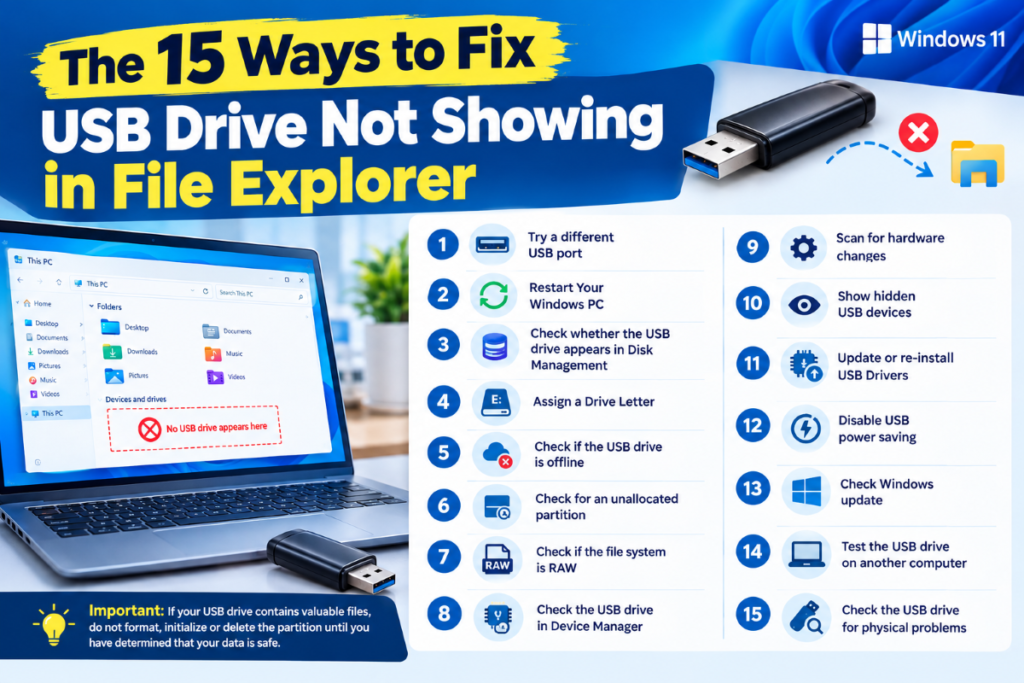
The 15 Ways to Fix USB Drive Not Showing in File Explorer
1. Try a different USB port
First things first: try the simplest solution.
Remove the USB drive from its current port and connect it to a new port.
If you are using a desktop PC ensure that you try both the:
• Front USB ports
• Rear motherboard USB ports
If you are using a laptop connect the USB drive to a different USB port.
Why this works
Sometimes a USB port can be faulty or disabled. which can cause the PC not to detect the drive at all.
Avoiding USB hubs temporarily
Some USB hubs docking stations and extension cords can be the culprit. Connect the USB drive to a computer directly instead of connecting it to a USB hub and then the computer.
2. Restart Your Windows PC
A simple restart can sometimes solve a USB issue.
Steps
- Safely disconnect your USB drive
- Click Start
- Click Power
- Click Restart
- Wait until Windows has restarted
- Connect the USB drive
- Open up File Explorer
- Click This PC
See whether the USB drive appears
3. Check whether the USB drive appears in Disk Management
This is an essential step.
Use Windows + X and click Disk Management
You can also use Windows + R and then type:
diskmgmt.msc
Enter
Microsoft notes that Disk Management is a built-in utility in Windows 10 and Windows 11 which can be used for managing partitions, volumes, drive letters and disk status.
Look for your USB drive in the bottom pane.
You may see a status of:
- Healthy
- Online
- Offline
- Unallocated
- No drive letter
- RAW
- Unknown
The next step will depend upon what you see here.
4. Assign a Drive Letter
Disk Management may well find your USB drive.
However, if it is not appearing under This PC or File Explorer. there is a very easy fix.
For example, Windows usually displays drive letters such as:
- C:
- D:
- E:
- F:
Steps - Open up Disk Management
- Locate your USB drive
- Right-click its partition
- Click Change Drive Letter and Paths
- Click Add
- Select Assign the following drive letter
- Choose an available letter
- Click OK
- Microsoft provides these exact instructions on assigning or changing a drive letter.
- Now go to File Explorer → This PC. Your USB drive may appear!
Important - Do not change the drive letter of the Windows system drive or Windows applications drive unless you know what you are doing. Microsoft states that changing the letters for the drive on which Windows is installed or where Windows applications are installed can cause applications to fail to find their required files.
5. Check if the USB drive is offline
Sometimes a USB drive can show up in Disk Management, but be listed as Offline.
Steps
- Open Disk Management
- Locate your USB drive
- Right-click the disk
- Click Online
- Wait a few seconds and open up File Explorer
If the drive has been offline, it should appear now.
6. Check for an unallocated partition
Sometimes Disk Management will read your USB partition as Unallocated space.
It may see the drive as something like:
Disk 2 — Unallocated
Important data warning!
If your USB drive used to hold valuable data do not immediately create a new volume or format the drive. Creating a new volume or formatting the drive can make it much harder to recover that data if you need it.
If your USB drive is a brand-new empty drive and does not contain any valuable data you can create a new volume.
For a new/empty USB drive
Steps
- Open up Disk Management
- Right-click the USB drive’s unallocated space
- Click New Simple Volume
- Follow the wizard
- Assign a drive letter
- Choose the appropriate file system
- Complete the wizard
7. Check if the file system is RAW
Another common finding in Disk Management is to see a RAW file system.
RAW file systems are generally a sign that Windows cannot currently recognize the file system as something Windows can read.
RAW can be the result of:
- File-system corruption
- Improper removal of the drive
- Corrupt partition
- Drive failure
If the USB drive contains important files
Do not format it just because it says RAW. Instead, consider trying a reputable data recovery solution or contacting a professional data recovery service.
If the drive is empty
It could be that it just needs formatting.
Remember that formatting wipes any existing data.
8. Check the USB drive in Device Manager
Device Manager can sometimes show if a USB device is being detected by Window and can highlight a driver issue.
Steps
- Press Windows + X
- Click Device Manager
- Expand Disk drives
- Expand Universal Serial Bus controllers
- Look for your USB device
- Check for a yellow warning icon
You can also check Device status under Properties-Device status for an error code
Microsoft publishes Device Manager troubleshooting guidance for driver errors and recommends re-installing the device driver and scanning for hardware changes when appropriate.
9. Scan for hardware changes
If Windows is not detecting the USB drive correctly force Windows to scan for newly-connected hardware.
Steps
- Open Device Manager
- Click Action
- Click Scan for hardware changes
- Wait for Windows to complete the scan
- Check out Disk drives and Universal Serial Bus controllers
Microsoft recommends Action → Scan for hardware changes as a way for Device Manager to detect hardware again.
10. Show hidden USB devices
Sometimes old disconnected USB devices can linger as hidden devices.
Steps
- Open Device Manager
- Click View
- Click Show hidden devices
- Expand Disk drives
- Expand Universal Serial Bus controllers
- Look for greyed-out devices relating to the USB drive.
Microsoft’s USB troubleshooting documentation also lists Show hidden devices as a Device Manager option for seeing devices that are not currently active.
Only uninstall devices that you are certain are related to the USB drive.
11. Update or re-install USB Drivers
A corrupted or malfunctioning driver can prevent Windows from communicating properly with USB hardware.
Update the driver
Steps
- Open Device Manager
- Expand Universal Serial Bus controllers
- Right-click the relevant USB device
- Click Update driver
- Select the appropriate automatic search option
You can also check under Disk drives for the USB storage device.
Reinstall a problematic device
If Windows reports a driver problem:
Steps
- Open Device Manager
- Right-click the problematic device
- Click Uninstall device
- Reboot your Windows PC
- Reconnect the USB drive
Microsoft recommends that you should uninstall a problematic driver reboot and use Scan for hardware changes when re-installing certain device drivers.
12. Disable USB power saving
Windows can use power-saving features to reduce power consumption. In some cases, USB power management can contribute to devices disconnecting or behaving inconsistently.
Check USB Root Hub settings
Steps
- Open Device Manager
- Expand Universal Serial Bus controllers
- Right-click USB Root Hub
- Click Properties
- Open the Power Management tab
- Look at any available option that allows Windows to turn off the device to save power
- Reboot the computer
Because the exact options available can vary by hardware and Windows configuration. you may not see the same settings on every PC.
13. Check Windows update
Windows updates can provide hardware compatibility improvements and driver updates.
Steps
- Open Settings
- Select Windows Update
- Click Check for updates
- Install any available updates
- Reboot your computer
After rebooting reconnect your USB drive and check out File Explorer → This PC.
14. Test the USB drive on another computer
This is probably the best way to determine if the problem is with the USB drive or with your Windows PC.
Plug your USB drive into another computer.
If it works on a different PC
The USB drive is probably working fine.
The problem could be related to:
- Your USB port
- Windows configuration
- USB drivers
- Drive-letter assignment
- Power management
- File-system handling
If it does not work anywhere
- The USB drive could have:
- Physical damage
- Controller failure
- Flash-memory failure
- File-system or partition damage (in severe cases)
Do not repeatedly format the drive if your data is important.
15. Check the USB drive for physical problems
If none of the software methods are working take a closer look at your USB physical hardware.
Look out for:
- Bent USB connector
- Cracked case
- lose connector
- Visible physical damage
- Excessive heat
- Intermittent connection
If the drive is disconnecting every time, you touch or move it there may be a physical connection issue. Try connecting to a different computer and a different USB port.
USB Drive Detected but Not Showing in File Explorer
This is a really common situation.
You might hear the Windows USB connection sound but not see the drive under This PC.
In this case, check Disk Management first.
Situation 1: The drive appears but has no letter
Assign a drive letter.
Situation 2: The drive appears as Offline
Right-click it and select Online.
Situation 3: The drive appears as Unallocated
If the drive is a new/empty drive you can create a new volume.
If the drive has important files on it do not format it.
Situation 4: The drive appears as RAW.
Do not try to format it if you need those data.
Situation 5: The drive does not appear in Disk Management at all
Check the following:
- Other USB ports
- Device Manager
- USB drivers
- On another computer
- Physical condition of the USB drive
