

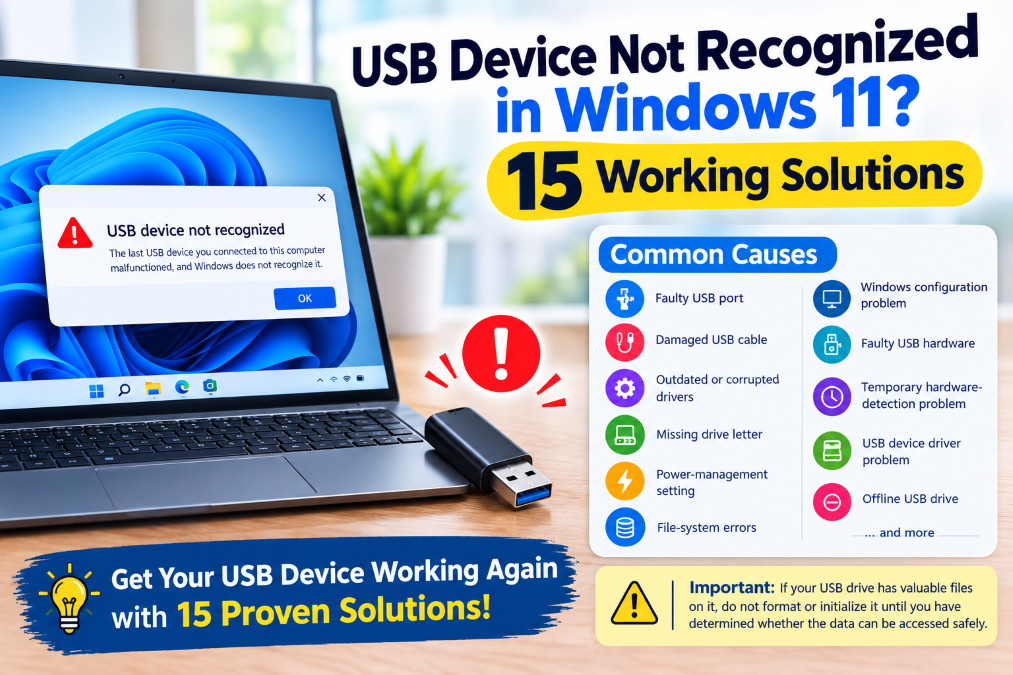
Have you plugged in a USB flash drive, external hard drive, keyboard or other USB device to your Windows 11 PC, only to see a message saying “USB device not recognized”?
This can happen due to various reasons, such as a faulty USB port a damaged cable out-of-date drivers a Windows configuration problem, power-management setting or an issue with the USB device itself.
The good news is that a USB device being unrecognized does not always mean that it is permanently damaged.
In this guide, we’ll walk you through 15 practical solutions that can help you troubleshoot a USB device not recognized in Windows 11.
Importantly: If your USB drive has valuable files on it, do not format or initialize it until you have determined whether the data can be accessed safely.
Table of Contents
Why Is My USB Device Not Recognized in Windows 11?
First, let’s look at some common causes of a USB device not being recognized so you can troubleshoot what may be going on:
- Faulty USB port
- Damaged USB Cable
- Temporary Windows hardware-detection problem
- Outdated or corrupted USB driver
- USB device driver problem
- Missing drive letter
- offline USB drive
- USB power-management setting
- File-system errors
- Windows configuration problem
- faulty USB hardware
Windows usually detects and installs new hardware automatically when you connect it, but detection can fail when Windows meets a hardware, driver or configuration problem.
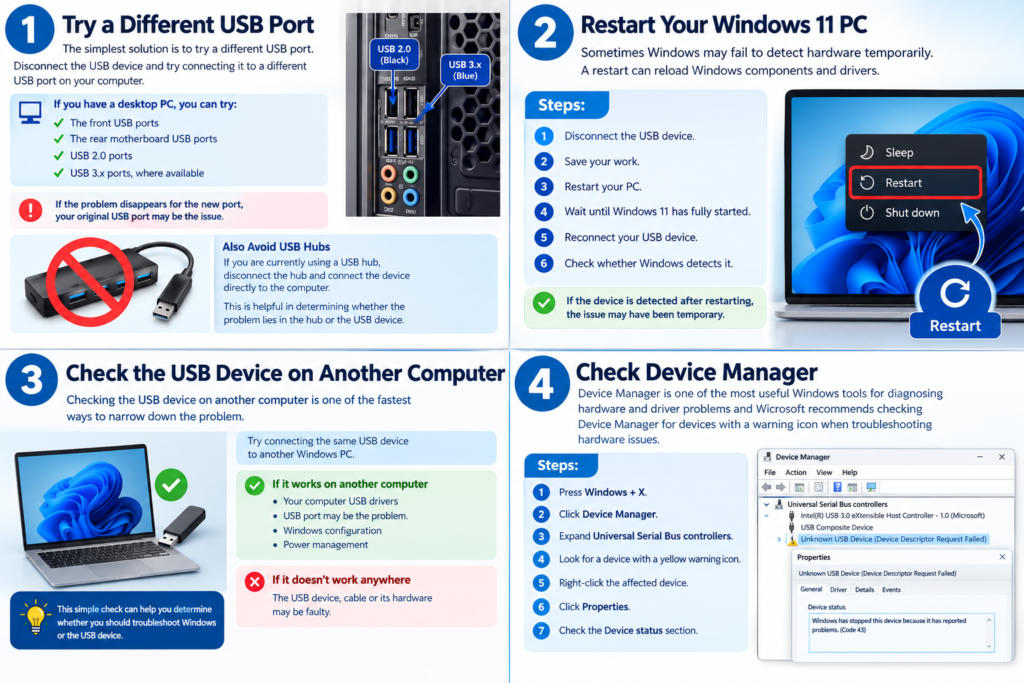
1. Try a Different USB Port
The simplest solution is to try a different USB port.
Disconnect the USB device and try connecting it to a different USB port on your computer.
If you have a desktop PC, you can try:
- The front USB ports
- The rear motherboard USB ports
- USB 2.0 ports
- USB 3.x ports, where available
If the problem disappears for the new port, your original USB port may be the issue.
Also Avoid USB Hubs
If you are currently using a USB hub, disconnect the hub and connect the device directly to the computer.
This is helpful in determining whether the problem lies in the hub or the USB device.
2. Restart Your Windows 11 PC
Sometimes Windows may fail to detect hardware temporarily.
A restart can reload Windows components and drivers.
Steps:
- Disconnect the USB device.
- Save your work.
- Restart your PC.
- Wait until Windows 11 has fully started.
- Reconnect your USB device.
- Check whether Windows detects it.
If the device is detected after restarting, the issue may have been temporary.
3. Check the USB Device on Another Computer
Checking the USB device on another computer is one of the fastest ways to narrow down the problem.
Try connecting the same USB device to another Windows PC.
If it works on another computer
- Your computer USB drivers
- USB port may be the problem.
- Windows configuration
- Power management
If it doesn’t work anywhere
The USB device, cable or its hardware may be faulty.
This simple check can help you determine whether you should troubleshoot Windows or the USB device.
4. Check Device Manager
Device Manager is one of the most useful Windows tools for diagnosing hardware and driver problems and Microsoft recommends checking Device Manager for devices with a warning icon when troubleshooting hardware issues.
Steps:
- Press Windows + X.
- Click Device Manager.
- Expand Universal Serial Bus controllers.
- Look for a device with a yellow warning icon.
- Right-click the affected device.
- Click Properties.
- Check the Device status section.
Check the Device status section. If Windows displays an error code make a note of it, as it can be helpful in identifying the problem.
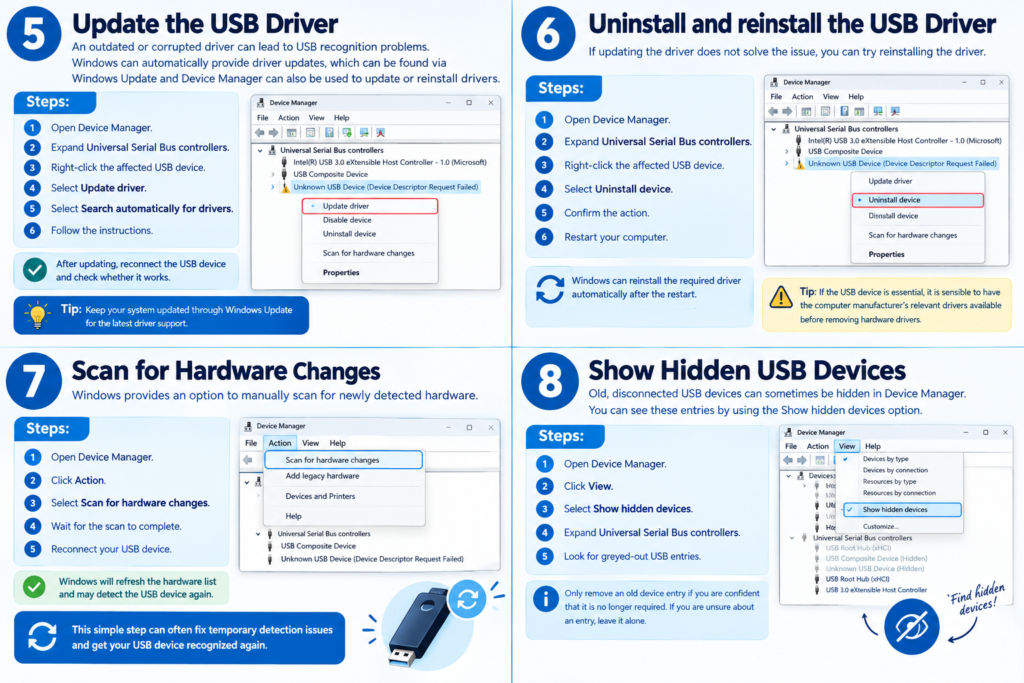
5. Update the USB Driver
An outdated or corrupted driver can lead to USB recognition problems.
Windows can automatically provide driver updates, which can be found via Windows Update and Device Manager can also be used to update or reinstall drivers.
Steps:
- Open Device Manager.
- Expand Universal Serial Bus controllers.
- Right-click the affected USB device.
- Select Update driver.
- Select Search automatically for drivers.
- Follow the instructions.
After updating, reconnect the USB device and check whether it works.
6. Uninstall and reinstall the USB Driver
If updating the driver does not solve the issue, you can try reinstalling the driver.
Steps:
- Open Device Manager.
- Expand Universal Serial Bus controllers.
- Right-click the affected USB device.
- Select Uninstall device.
- Confirm the action.
- Restart your computer.
Windows can reinstall the required driver automatically after the restart. Microsoft also documents the same general approach for updating or reinstalling device drivers.
Tip: If the USB device is essential, it is sensible to have the computer manufacturer’s relevant drivers available before removing hardware drivers.
7. Scan for Hardware Changes
Windows provides an option to manually scan for newly detected hardware.
Steps:
- Open Device Manager.
- Click Action.
- Select Scan for hardware changes.
- Wait for the scan to complete.
- Reconnect your USB device.
Windows will refresh the hardware list and may detect the USB device again.
8. Show Hidden USB Devices
Old, disconnected USB devices can sometimes be hidden in Device Manager.
You can see these entries by using the Show hidden devices option.
Steps:
- Open Device Manager.
- Click View.
- Select Show hidden devices.
- Expand Universal Serial Bus controllers.
- Look for greyed-out USB entries.
Only remove an old device entry if you are confident that it is no longer required.
If you are unsure about an entry, leave it alone.
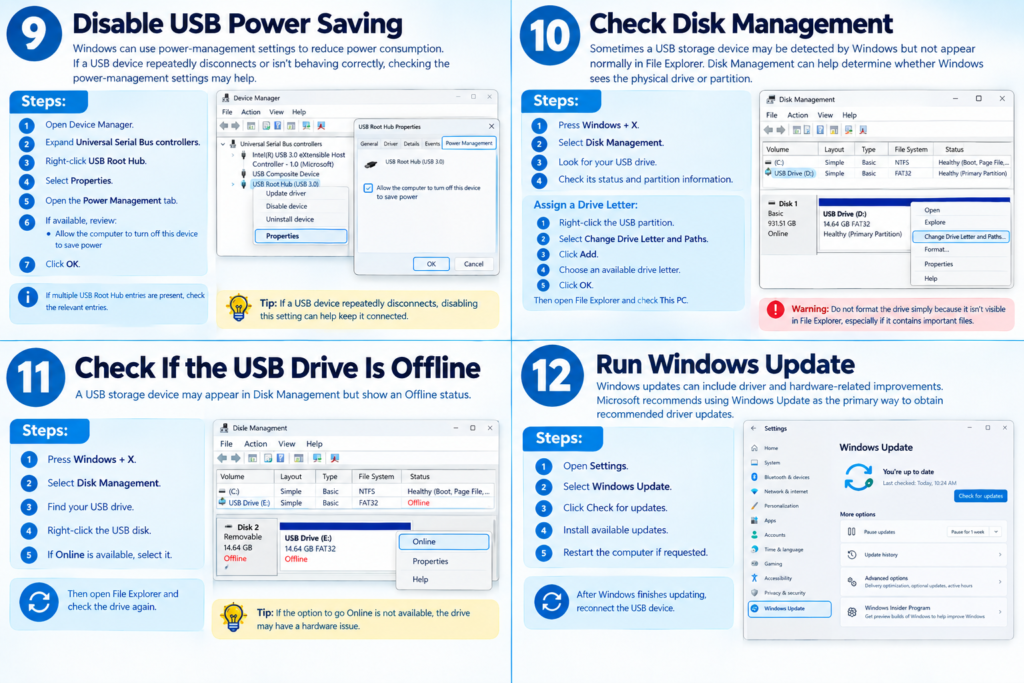
9. DisableWindows can use power-management settings to reduce power consumption.
If a USB device is constantly disconnecting or is not behaving correctly, checking the power-management settings may be helpful.
Steps:
- Open Device Manager.
- Expand Universal Serial Bus controllers.
- Right-click USB Root Hub.
- Click Properties.
- Open the Power Management tab.
- If available, review: Allow the computer to turn off this device to save power
- Click OK.
If multiple USB Root Hub entries are found, select the relevant entries. USB Power Saving
10. Check Disk Management
Sometimes a USB storage device may be detected, but not appear normally in File Explorer.
Disk Management can help determine whether Windows sees the physical drive or partition.
Steps:
- Press Windows + X.
- Select Disk Management.
- Find your USB drive.
- Check its status and partition information.
If the drive is visible but does not have a drive letter, you may be able to assign a drive letter.
Assign a Drive Letter
- Right-click the USB partition.
- Select Change Drive Letter and Paths.
- Click Add.
- Select an available drive letter.
- Click OK.
Then open File Explorer and check This PC.
Warning: Do not format the drive simply because it is not visible in File Explorer (especially if it contains important files).
11. Check If the USB Drive Is Offline
Sometimes a USB storage device may seem disconnected, even though it appears in Disk Management.
Steps:
- Press Windows + X.
- Select Disk Management.
- Find your USB drive.
- Right-click the USB disk.
- If online is an option, select it.
Then open File Explorer and check the drive.
12. Run Windows Update
Windows updates can include driver and hardware-related improvements and Microsoft recommends using Windows Update as the primary way to obtain recommended driver updates.
Steps:
- Open Settings.
- Select Windows Update.
- Click Check for updates.
- Install available updates.
- Restart the computer if requested.
After Windows has updated, reconnect the USB device.
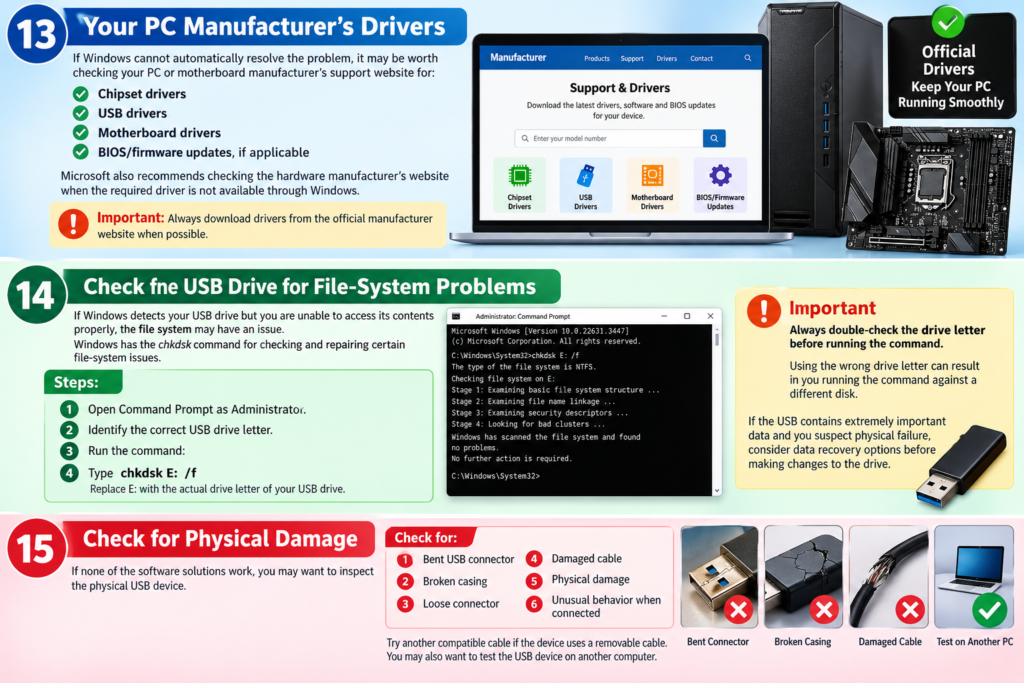
13. Check Your PC Manufacturer’s Drivers
If Windows cannot automatically resolve the problem, it may be worth checking your PC or motherboard manufacturer’s support website for:
- Chipset drivers
- USB drivers
- Motherboard drivers
- BIOS/firmware updates, if applicable
Microsoft also recommends checking the hardware manufacturer’s website when the required driver is not available through Windows.
Important: Always download drivers from the official manufacturer website when possible.
14. Check the USB Drive for File-System Problems
If Windows detects your USB drive but you are unable to access its contents properly, the file system may have an issue.
Windows has the chkdsk command for checking and repairing certain file-system issues.
Steps:
- Open Command Prompt as Administrator.
- Identify the correct USB drive letter.
- Run:
- Type chkdsk E: /f
Replace E: with the actual drive letter of your USB drive.
Important
Always double-check the drive letter before running the command.
Using the wrong drive letter can result in you running the command against a different disk.
If the USB contains extremely important data and you suspect physical failure, consider data recovery options before making changes to the drive.
15. Check for Physical Damage
If none of the software solutions work, you may want to inspect the physical USB device.
Check for:
- Bent USB connector
- Broken casing
- Loose connector
- Damaged cable
- Physical damage
- Unusual behavior when connected
Try another compatible cable if the device uses a removable cable.
You may also want to test the USB device on another computer.
USB Device Not Recognized in Windows 11? Total Video Guide
If the USB works elsewhere
Your Windows 11 PC may have a configuration, driver, port or power-related issue.
If the USB fails everywhere
The USB device itself may have a hardware problem.
What to Do If USB Device Is Still Not Recognized?
If you have tried all 15 solutions and Windows 11 still does not recognize your device, do not immediately format the device.
Instead:
- Try another USB port.
- Try another computer.
- Try another compatible cable.
- Check Disk Management.
- Check Device Manager for error codes.
- Install Windows updates.
- Install the latest manufacturer drivers.
- See if the USB device has physical damage.
If the device contains valuable data, do not format or initialize it before considering data recovery.
USB Device Not Recognized vs USB Drive Not Showing
These two problems are similar, but are not always the same.
USB Device Not Recognized
Windows may display a notification such as:
“USB device not recognized.” Device Manager may also display a warning icon or error code. Microsoft notes that USB recognition errors can be associated with device or driver problems.
USB Drive Not Showing
In this case, Windows may actually detect the storage device, but it may not appear under This PC.
Checking the Disk Management for the drive letter of the disk is useful in this situation.
