



You plug in your USB flash drive, hear that familiar chime, but… nothing appears. No pop-up, no new drive in File Explorer. Just silence. If your USB device not showing in PC is the problem right now, take a deep breath. You haven’t lost your data and your drive isn’t necessarily broken.
I’ve been there myself rushing to finish a presentation or retrieve family photos, only to be met with an invisible USB drive. The good news? In 2026, most of these issues are fixable in less than five minutes. Below, I’ll walk you through seven easy methods that actually work, from the simplest to the slightly more technical. No computer science degree required.
Let’s start by understanding why this happens, then get straight to the solutions
Table of Contents
Why Is Your USB Device Not Showing in PC? Common Causes
Before we jump into fixes, it helps to know what might be going on behind the scenes. When a USB not showing in PC occurs, it’s usually one of these culprits:
- Driver issues – Windows installed a bad or outdated driver.
- Drive letter conflict – The USB is trying to use a letter that’s already taken (like a network drive).
- Power management – Your PC turned off the USB port to save energy.
- Physical damage or loose connection – The port or the drive itself has a problem.
- File system corruption – The USB is formatted in a way Windows doesn’t recognize (e.g., Linux ext4).
Now, let’s fix it. Try these methods in order – most people solve the issue by Method 3 or 4.
Method 1: Check the Obvious – Physical Connections
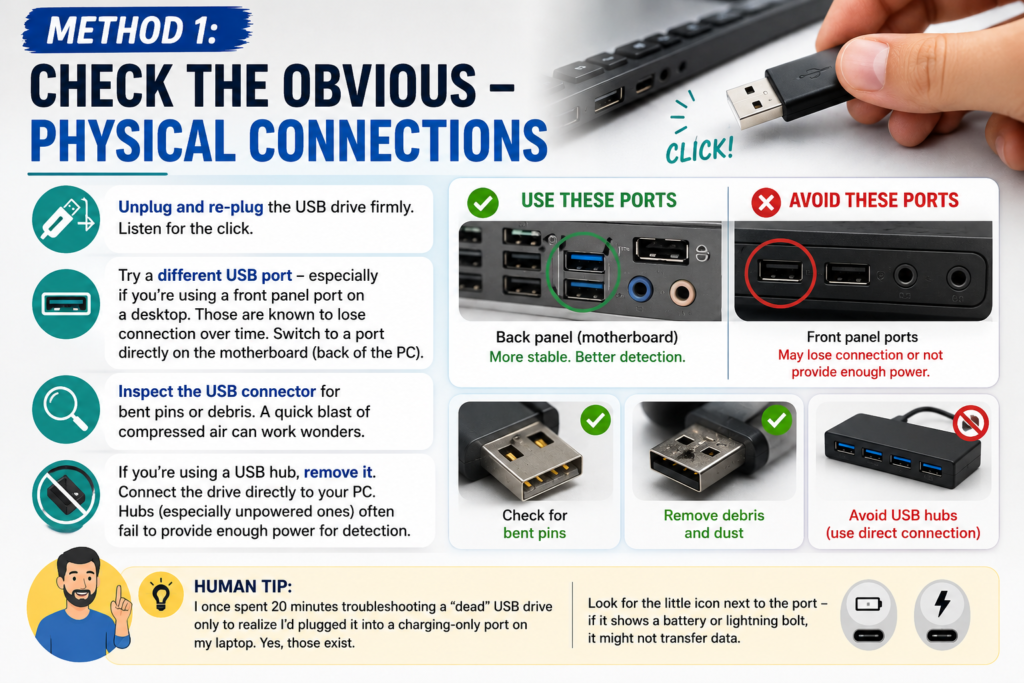
I know, this sounds too simple. But you’d be surprised how often a USB not showing in PC is just a loose cable or a dusty port. Before you dive into software settings, do this:
- Unplug and re-plug – the USB drive firmly. Listen for the click.
- Try a different USB port – especially if you’re using a front panel port on a desktop. Those are known to lose connection over time. Switch to a port directly on the motherboard (back of the PC).
- Inspect the USB connector – for bent pins or debris. A quick blast of compressed air can work wonders.
- If you’re using a USB hub, remove it. Connect the drive directly to your PC. Hubs (especially unpowered ones) often fail to provide enough power for detection.
Human tip: I once spent 20 minutes troubleshooting a “dead” USB drive only to realize I’d plugged it into a charging-only port on my laptop. Yes, those exist. Look for the little icon next to the port – if it shows a battery or lightning bolt, it might not transfer data.
Method 2: Restart and Test on Another PC
If the physical checks didn’t help, let’s see if the problem is your PC or the drive itself.
First, restart your computer. A quick reboot clears temporary glitches that can cause a USB drive not showing in PC. This solves a shocking number of issues.
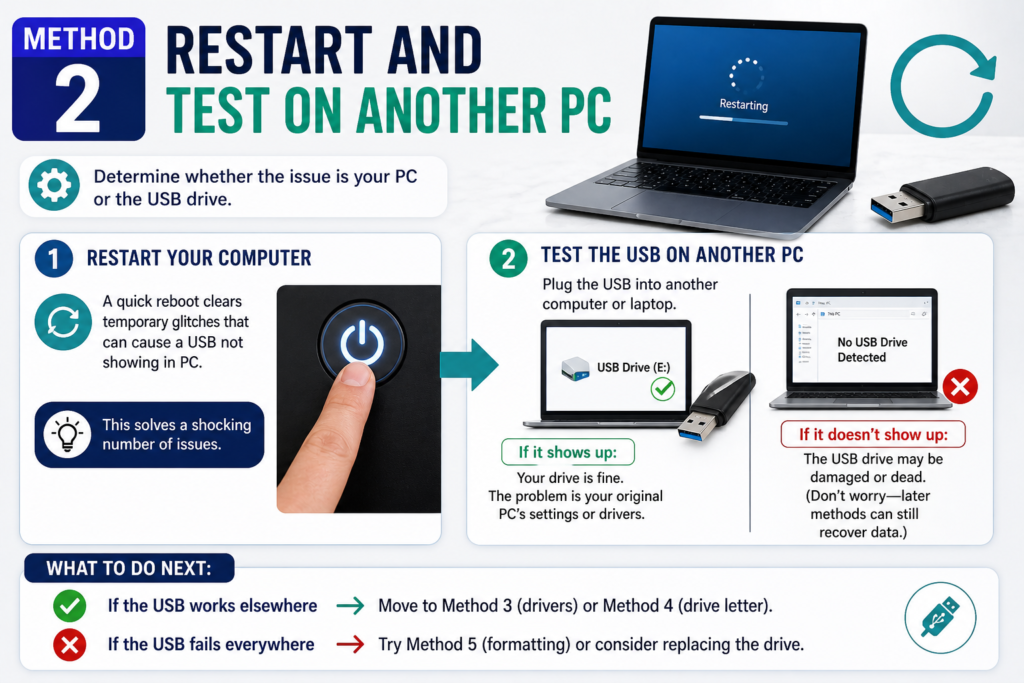
Second, plug the USB into another computer or laptop. If it shows up there, your drive is fine – the problem is your original PC’s settings or drivers. If it doesn’t show up on a second PC either, the USB drive may be damaged or dead (but don’t worry – later methods can still recover data).
What to do next:
- If the USB works elsewhere → Move to Method 3 (drivers) or Method 4 (drive letter).
- If the USB fails everywhere → Try Method 5 (formatting) or consider replacing the drive.
Method 3: Update or Reinstall USB Drivers (Most Common Fix in 2026)
Driver conflicts are the #1 reason a USB drive not showing in PC happens on Windows 11 and Windows 12 (yes, 2026 brings continued updates). Here’s how to fix them:
Step-by-step:
- Right-click the Start button and select Device Manager.
- Expand the section called Universal Serial Bus controllers.
- Look for any entry with a yellow exclamation mark. That’s a driver problem.
- Right-click each “USB Root Hub” and **Generic USB Hub” entry, then choose Update driver > Search automatically for drivers.
- If that doesn’t work, right-click again and choose Uninstall device. Don’t panic – Windows will reinstall it automatically when you restart.
- Restart your PC after uninstalling. Windows will fetch fresh drivers.
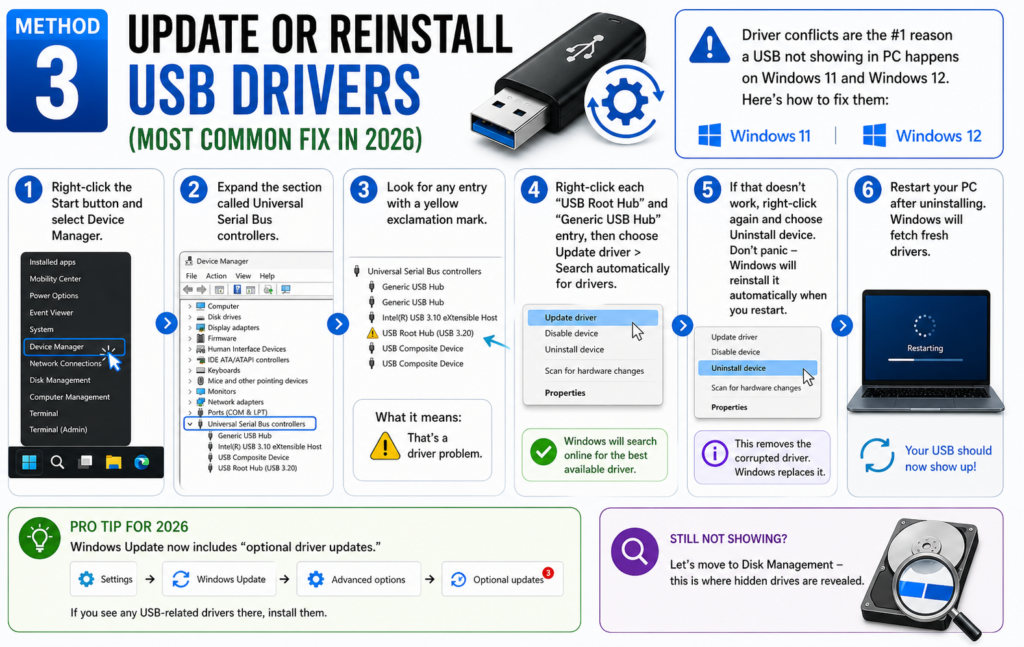
Pro tip for 2026: Windows Update now includes “optional driver updates.” Go to Settings > Windows Update > Advanced options > Optional updates. If you see any USB-related drivers there, install them.
Still not showing? Let’s move to Disk Management – this is where hidden drives are revealed.
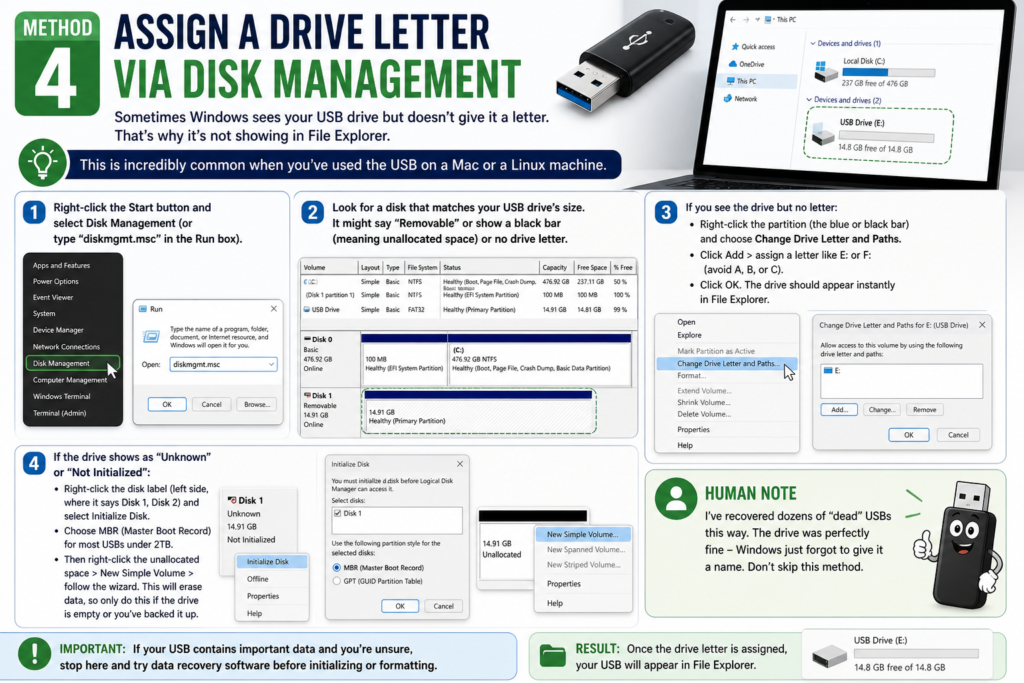
Method 4: Assign a Drive Letter via Disk Management
Sometimes Windows sees your USB drive but doesn’t give it a letter. That’s why it’s not showing in File Explorer. This is incredibly common when you’ve used the USB on a Mac or a Linux machine.
Here’s how to fix a USB drive not showing in PC using Disk Management:
- Right-click the Start button and select Disk Management (or type “diskmgmt.msc” in the Run box).
- Look for a disk that matches your USB drive’s size. It might say “Removable” or show a black bar (meaning unallocated space) or no drive letter.
- If you see the drive but no letter:
- Right-click the partition (the blue or black bar) and choose Change Drive Letter and Paths.
- Click Add > assign a letter like E: or F: (avoid A, B, or C).
- Click OK. The drive should appear instantly in File Explorer.
- If the drive shows as “Unknown” or “Not Initialized”:
- Right-click the disk label (left side, where it says Disk 1, Disk 2) and select Initialize Disk.
- Choose MBR (Master Boot Record) for most USBs under 2TB.
- Then right-click the unallocated space > New Simple Volume > follow the wizard. This will erase data, so only do this if the drive is empty or you’ve backed it up.
Human note: I’ve recovered dozens of “dead” USBs this way. The drive was perfectly fine – Windows just forgot to give it a name. Don’t skip this method.
Method 5: Format the USB Drive (If Recognized but Not Showing)
This method is for when your USB appears in Disk Management but still won’t show in File Explorer – often due to a corrupted file system or a format Windows can’t read (like exFAT on an old system or ext4).
Warning: Formatting erases all data. If you need to recover files first, use a tool like Recuva or EaseUS Data Recovery before formatting.
How to format when USB drive not showing in PC (but visible in Disk Management):
- Open Disk Management again.
- Right-click the USB drive’s partition (the blue or black bar).
- Select Format.
- Choose File system:
- NTFS – best for Windows-only use and files larger than 4GB.
- exFAT – best for sharing between Windows, Mac, and Linux (recommended for 2026).
- FAT32 – old, only for small files under 4GB. Avoid unless needed.
- Check Perform a quick format.
- Click OK. After a few seconds, your USB should be visible.
If Disk Management doesn’t see the USB at all, try a different PC or consider that the drive might have failed hardware. But before giving up, go to Method 6.
Method 6: Run the Hardware and Devices Troubleshooter (Windows Built-in)
Windows has a hidden troubleshooter that specifically looks for a USB drive not showing in PC and similar hardware detection issues. It’s old, but it works surprisingly well.
Steps for Windows 10 and Windows 11 (2026):
- Open Settings (Win + I).
- Go to System > Troubleshoot > Other troubleshooters.
- Find Hardware and Devices in the list. If you don’t see it, type “cmd” in Start, right-click Command Prompt, run as admin, and paste this command:
text
msdt.exe -id Device Diagnostic
Press Enter. The troubleshooter will open.
- Click Next and let it scan. It will check for USB issues, driver problems, and power management conflicts.
- Apply any fixes it suggests, then restart your PC.
What this fixes: Power management settings that turn off USB ports, corrupted device metadata, and common plug-and-play registration errors. I’ve seen this resolve a USB drive not showing in PC in under two minutes.
Method 7: Disable USB Selective Suspend (Power Management Trick)
Modern Windows versions try to save energy by turning off individual USB ports when they’re not in use. Sometimes, they get stuck in “off” mode even when you plug something in. This is especially common on laptops and 2026 ultra-portable PCs.
Here’s how to force your PC to always keep USB ports active:
- Type Control Panel in the Start menu and open it.
- Go to Hardware and Sound > Power Options.
- Click Change plan settings next to your current power plan (Balanced or High performance).
- Click Change advanced power settings.
- Scroll down to USB settings > USB selective suspend setting.
- Change both On battery and Plugged in to Disabled.
- Click Apply > OK.
- Restart your PC and test the USB drive.
Why this works: Many USB drives, especially older or cheaper ones, don’t “wake up” properly when Windows tries to re-power the port. Disabling selective suspend keeps the port ready at all times. The power drain is negligible we’re talking pennies a year.
Bonus: What If Nothing Works? (Data Recovery & Hardware Options)
Bonus: What If Nothing Works? (Data Recovery & Hardware Options)
1. Check for physical damage inside the USB
If you’re comfortable with small electronics, open the USB casing. Sometimes the solder joints on the connector crack. A local repair shop can re-solder it for $10-20.
2. Use Linux Live USB to recover data
Create a bootable Linux USB (using another drive) and boot from it. Linux often recognizes drives Windows can’t. Copy your files to the cloud or another drive.
3. Professional data recovery
If the data is priceless (family photos, business documents), services like Drive Savers or Ontrack can recover data even from physically damaged USBs. Costs $100-500, but worth it for irreplaceable files.
Preventing Future USB Issues (2026 Best Practices)
Once you’ve fixed your USB drive not showing in PC, let’s keep it that way:
- Always safely eject – Right-click the USB icon in the system tray and choose “Eject.” Yanking it out corrupts file systems.
- Use a single USB port – Switching ports constantly can confuse Windows’ driver assignment. Pick one main port for your daily drive.
- Keep Windows updated – Microsoft releases USB stability patches regularly. Enable automatic updates.
- Label your drives – Give each USB a unique name in File Explorer (right-click > Rename). This helps Disk Management identify them.
- Backup critical data – USBs fail without warning. Use OneDrive, Google Drive, or a secondary drive for important files.
