



There is nothing quite as frustrating as sitting down with your morning coffee, ready to tackle your to-do list, if wi-fi not connecting on laptop only to see that dreaded yellow exclamation mark over the Wi-Fi icon. You click it. Nothing. You restart the browser. Still nothing. Suddenly, your high-performance laptop feels like a useless brick.
If you are reading this, chances are you are currently staring at a screen that refuses to play nice with your wireless network. I have been there. It usually happens at the worst possible moment right before a deadline or a Zoom call.
Before you throw your laptop out the window or call your Internet Service Provider to wait on hold for an hour, take a deep breath. Most WiFi issues are not actually broken hardware. they are just glitches in the matrix that can be fixed with a few simple tweaks.
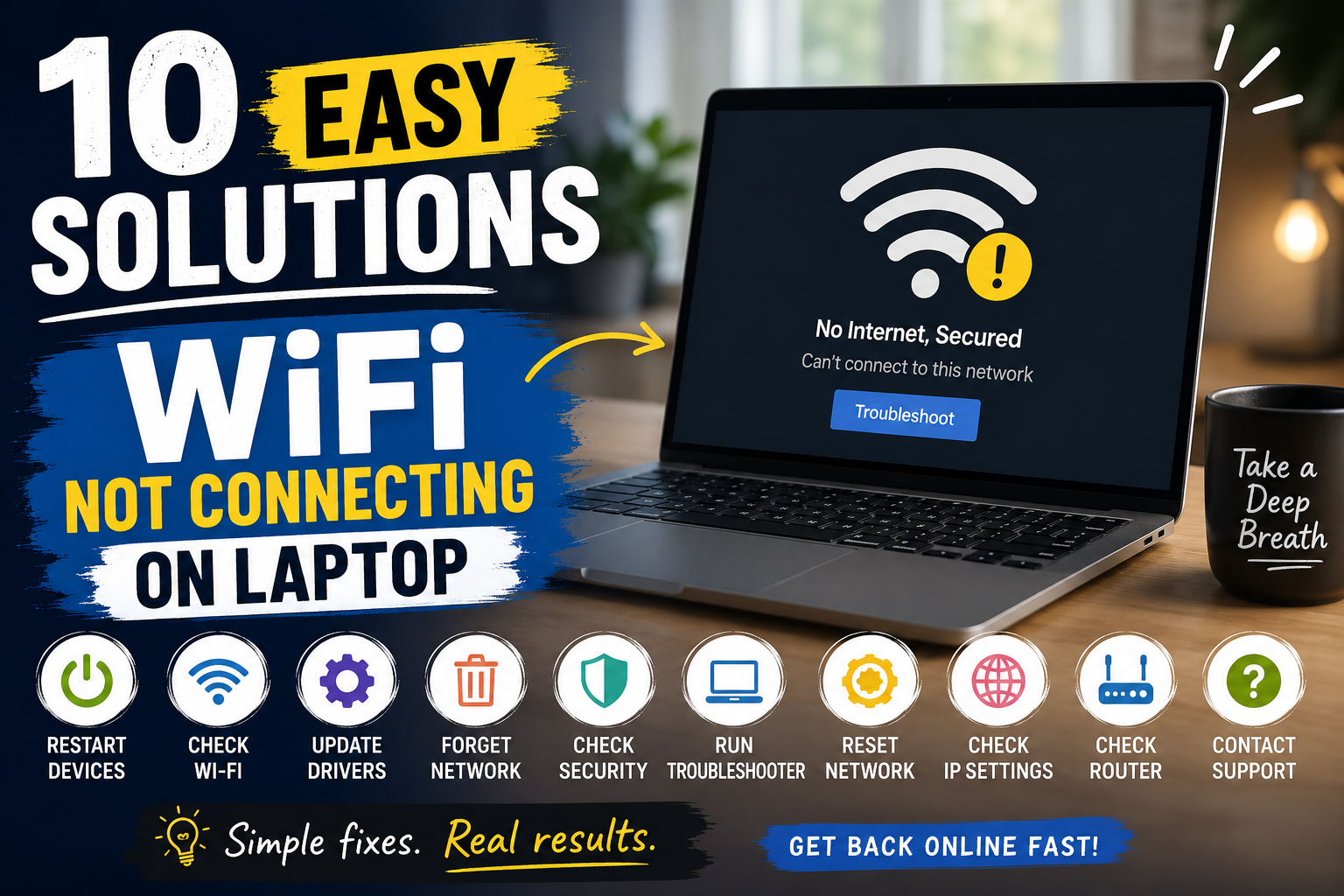
Here are 10 easy, human-tested solutions to fix the issue when your WiFi not connecting on laptop is driving you insane.
Table of Contents
1. The Classic “Turn It Off and On Again” (Yes, Really)
It sounds cliché because it works. When your Wii not connecting on laptop, the first thing to do is perform a full power cycle. However, let’s be specific about how to do it properly, because simply clicking “Restart” isn’t always enough.
For the Laptop:
Shut down your laptop completely. Wait for about 30 seconds. Remove the power cord if it’s plugged in. If your laptop has a removable battery (though rare in modern ultra books), take it out. Hold down the power button for 15 seconds. This drains any residual static charge that might be causing a hardware conflict. Then, plug everything back in and boot it up.
For the Router (The Forgotten Hero):
While your laptop is off, unplug your router and modem from the power outlet. Wait for at least 60 seconds. Plug the modem back in first, wait for all the lights to stabilize (usually a solid green light for internet), then plug the router back in. Once the router lights are steady, turn your laptop back on.
Why does this work? Routers are essentially tiny computers. They accumulate background processes and memory leaks over time. A fresh start clears the cache and re-establishes a clean connection to your Internet Service Provider.
2. Airplane Mode: The Quick Reset Trick
Modern laptops have a quick toggle that can sometimes shake loose a stubborn network adapter. If your WiFi not connecting on laptop, try this simple trick that often fixes driver handshake issues.
Click on the notification centre icon (or swipe in from the right on Windows) and turn Airplane Mode on. Wait for about 10 seconds. You should see all radios (WiFi, Bluetooth, etc.) shut down. Now, turn Airplane Mode off.
This forces the operating system to re-scan for available networks from scratch. It is a much faster alternative to a full restart and often resolves the issue where the WiFi button appears greyed out or unresponsive.
3. Forget the Network and Reconnect
Sometimes the laptop remembers the WiFi network a little too well. Corrupted saved credentials or a mismatch in security protocols can prevent you from connecting, even if the password is correct.
If your WiFi not connecting on laptop but you see the network name listed, follow these steps:
On Windows: Go to Settings > Network & Internet > WiFi > Manage known networks. Click on your network name and select “Forget.”
On macOS: Go to System Settings > WiFi > Advanced. Find your network, click the three dots (or minus sign) and select “Remove.”
After forgetting the network, close the settings window. Click the WiFi icon again, select your network and re-enter the password. This creates a brand-new connection profile, wiping out any previous glitches that were preventing the handshake.
4. The Physical Wi-Fi Switch or Function Key
This is a common culprit that even tech-savvy users sometimes overlook. Many laptop manufacturers especially Lenovo, HP and Dell include a physical way to disable the wireless radio.
Check the sides of your laptop. Do you see a tiny switch with an antenna icon? If it is flipped to the “off” position, your WiFi not connecting on laptop is by design.
If there is no physical switch, look at your keyboard. The top row (F1-F12) usually has function keys. Look for the icon that looks like a tower emitting radio waves or an airplane. You may need to press the Fn key in combination with that function key (e.g., Fn + F2) to enable the adapter. If the light on that key is red or orange, it usually means the radio is off. You want it white or blue.
5. Run the Network Troubleshooter (Windows)
I know what you are thinking: “Built-in troubleshooters never work.” But for network issues, Microsoft actually built a surprisingly effective tool. When your WiFi not connecting on laptop, this tool automates many of the steps I’ve listed above and can identify issues you might not have thought of.
- Windows 10 & 11: Right-click the Start button (or press Windows key + X) and select “Settings.”
- Navigate to System > Troubleshoot > Other troubleshooters (or simply search for “Troubleshoot” in the start menu).
- Find Network Adapter and click “Run.”
The troubleshooter will reset the adapter, check the status of the DHCP client, and sometimes even find that “the default gateway is missing” or that the IP address is conflicting. Let it run, apply the fixes and see if the internet springs back to life.
6. Update or Roll Back the Network Driver
The bridge between your laptop’s hardware and the operating system is the driver. If your WiFi not connecting on laptop suddenly after a Windows Update or a system upgrade, the driver is likely the culprit.
To Update:
- Right-click the Start button and select Device Manager.
- Expand the Network adapters section.
- Look for a device with “Wireless,” “WLAN,” or “802.11” in the name (avoid the ones saying Ethernet, Bluetooth, or Virtual).
- Right-click your wireless adapter and select Update driver > Search automatically for drivers.
To Roll Back (If it worked yesterday):
If the issue started immediately after an update, you might want to roll back.
- In Device Manager, right-click the wireless adapter and select Properties.
- Go to the Driver tab.
- If the “Roll Back Driver” button is clickable, select it. This reverts the driver to the previous version that was working.
7. Disable IPv6 (Internet Protocol Version 6)
This is a niche fix, but it is a lifesaver for many. IPv6 is the newer internet protocol, but some routers and older network configurations don’t play well with it. Sometimes, the laptop gets stuck trying to negotiate an IPv6 connection and fails, leaving you with no internet, even though you are connected to the WiFi.
To fix this:
- Go to Control Panel > Network and Sharing Centre > Change adapter settings (or search for “View network connections” in the start menu).
- Right-click your WiFi adapter and select Properties.
- In the list of items, scroll down and uncheck the box next to “Internet Protocol Version 6 (TCP/IPv6).”
- Click OK.
Don’t worry unchecking this doesn’t break anything. It simply tells your laptop to rely solely on IPv4, which is still used by the vast majority of the internet. If this fixes the issue, you can leave it unchecked permanently.
8. Configure DNS Settings
Sometimes your WiFi not connecting on laptop isn’t a connection issue; it’s a name resolution issue. You might be connected to the network (showing “Connected, No Internet”) because the Domain Name System (DNS) servers provided by your ISP are down or slow.
Switching to a public DNS server like Google (8.8.8.8) or Cloudflare (1.1.1.1) can bypass this immediately.
- Open Control Panel and navigate to Network and Internet > Network and Sharing Centre > Change adapter settings.
- Right-click your WiFi adapter and select Properties.
- Select Internet Protocol Version 4 (TCP/IPv4) and click Properties.
- Click the radio button for Use the following DNS server addresses.
- Enter 8.8.8.8 for Preferred DNS and 8.8.4.4 for Alternate DNS.
- Click OK and close out.
9. Check the Wi-Fi Network Band (2.4GHz vs. 5GHz)
Modern laptops support dual-band WiFi. However, the 5GHz band, while faster, has a shorter range and is worse at penetrating walls. If you moved your laptop to a different room and suddenly your WiFi not connecting on laptop, it might be stuck trying to connect to the 5GHz band that is now out of range.
Solution:
- In Device Manager, go to Network adapters.
- Right-click your wireless adapter and select Properties.
- Go to the Advanced tab.
- Look for a property called Preferred Band or Band.
- Set the value to Prefer 2.4GHz.
This forces the laptop to prioritize the longer-range band. It might be slightly slower than 5GHz, but it is far more reliable if you are far from the router.
10. Disable VPN or Third-Party Antivirus
If you are using a Virtual Private Network (VPN) or a third-party antivirus suite (like Norton, McAfee or Avast), they often come with built-in “Firewalls” or “Secure Network” features that act as a gatekeeper.
Sometimes, these programs get stuck during an update. They end up blocking all network traffic, making it appear as though your WiFi not connecting on laptop when, in reality, the connection is being actively blocked by software.
Temporary Test:
- Try disabling your VPN completely.
- Right-click your antivirus icon in the system tray and select “Disable” or “Pause protection” for 10 to 15 minutes.
- See if the internet connects.
If this works, you have a few options. You can uninstall the third-party antivirus (Windows Defender is actually excellent nowadays and rarely causes these conflicts) or adjust the firewall settings within the antivirus to allow public/private network access.
A Quick Troubleshooting Cheat Sheet
| Symptom | Likely Cause | Quick Fix |
| No WiFi networks appear at all | WiFi adapter disabled or driver failure | Check physical switch; Update driver in Device Manager |
| Connected but no internet | IP conflict or DNS issue | Run network troubleshooter; Reset DNS via command prompt (ipconfig /release & ipconfig /renew) |
| Connects but drops constantly | Signal interference or power saving | In Device Manager, disable “Allow computer to turn off this device to save power” |
| WiFi works on other devices but not laptop | Laptop software settings | Forget network; Disable IPv6 |
When to Call for Backup
If you have tried all 10 solutions and your WiFi not connecting on laptop is still a persistent problem, you may be dealing with a hardware failure. WiFi cards can burn out, especially in older laptops that run hot.
However, before you buy a new card or a new laptop, consider a cheap workaround: USB WiFi Adapters. They cost between $15 and $30. You plug them into a USB port, and they act as a new, external WiFi card. This bypasses your internal hardware entirely. If the USB adapter works, you know the issue is internal hardware; if it doesn’t, the issue is likely your router or the software environment itself.
