


Introduction
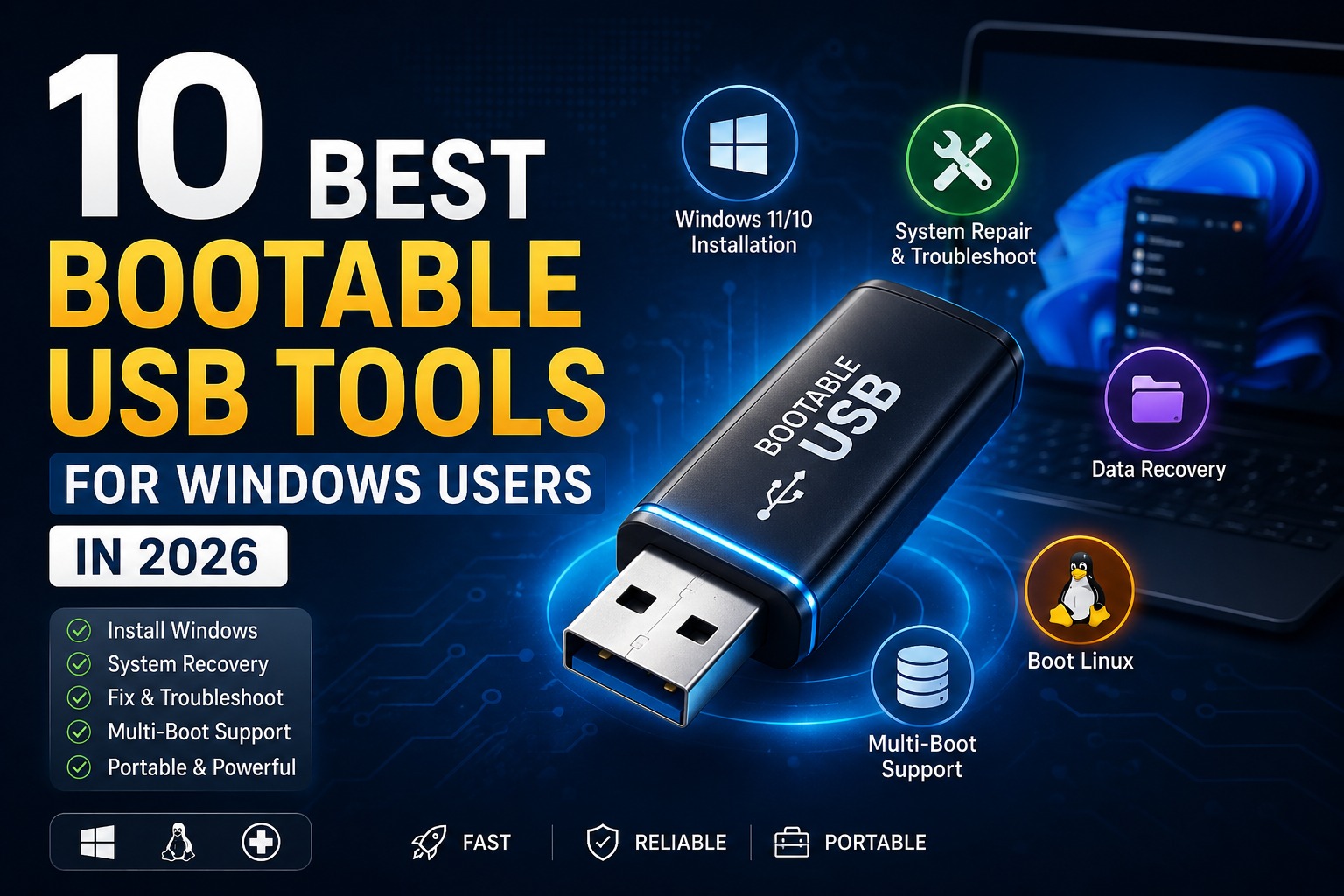
Bootable USB tools are very useful for installing Windows, fixing system errors, recovering files, and troubleshooting computers. Instead of using DVDs, most users now prefer USB drives because they are faster, portable and easy to use.
A good bootable USB tool can help you:
- Install Windows 11 or Windows 10
- Create recovery drives
- Boot Linux systems
- Repair damaged computers
- Store multiple operating systems
In this guide, you will discover the best bootable USB tools for Windows users in 2026.
Table of Contents
What Is a Bootable USB Tool?
A bootable USB tool is software that converts a normal USB drive into a bootable installation or recovery device.
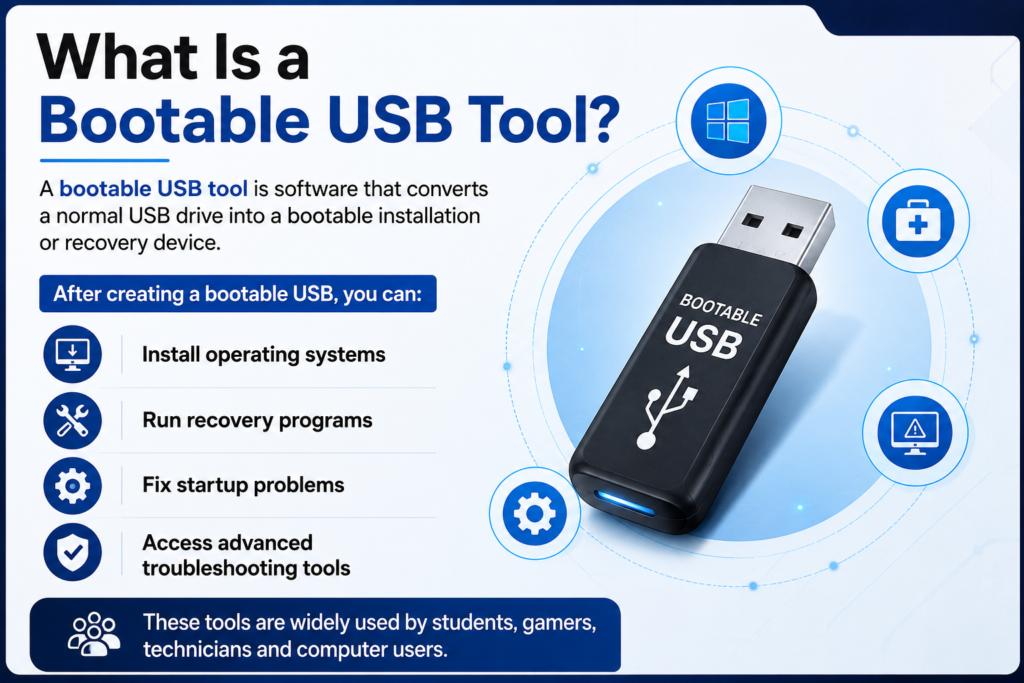
After creating a bootable USB, you can:
- Install operating systems
- Run recovery programs
- Fix startup problems
- Access advanced troubleshooting tools
These tools are widely used by students, gamers, technicians and computer users.
Here are top 10 types of best bootable usb tools for windows
1. Rufus
Best for Fast Windows Installation
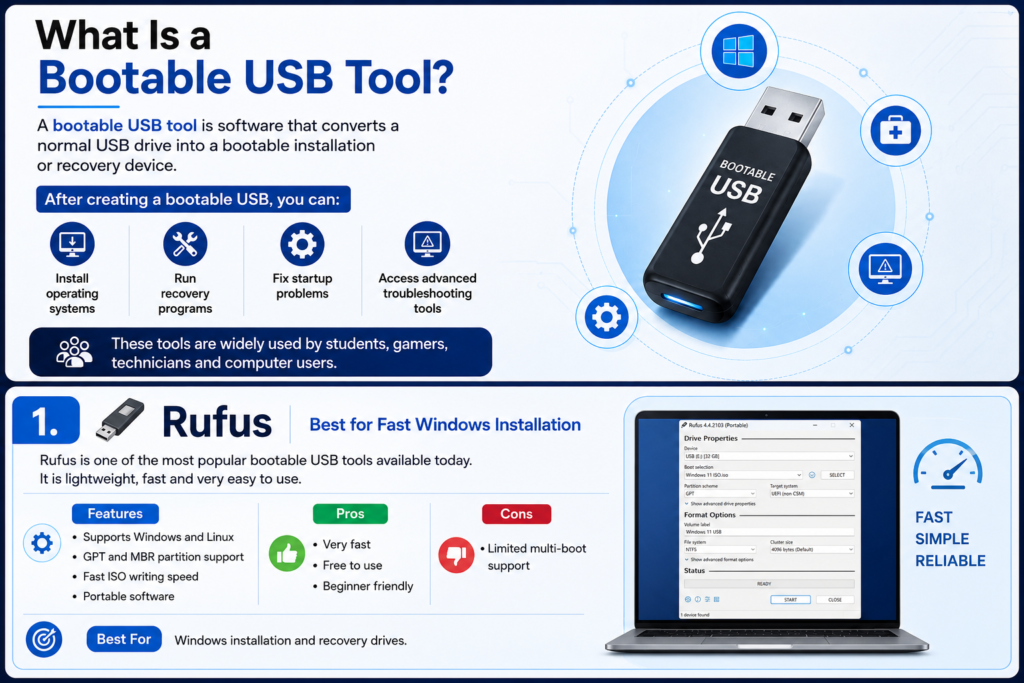
Rufus is one of the most popular bootable USB tools available today. It is lightweight, fast and very easy to use.
Features
- Supports Windows and Linux
- GPT and MBR partition support
- Fast ISO writing speed
- Portable software
Pros
- Very fast
- Free to use
- Beginner friendly
Cons
- Limited multi-boot support
Best For
Windows installation and recovery drives.
2. Ventoy
Best Multi-Boot USB Tool
Ventoy allows users to copy multiple ISO files directly into a USB drive without formatting repeatedly.
Features
- Multi-boot support
- Drag-and-drop ISO system
- Supports Windows and Linux
- UEFI compatibility
Pros
- Easy to manage
- Supports multiple operating systems
- Saves time
Cons
- Slightly advanced for beginners
Best For
Users who want multiple operating systems on one USB.
3. Balena Etcher
Best for Simplicity
Balena Etcher is known for its clean interface and easy bootable USB creation process.
Features
- Cross-platform support
- Simple interface
- Secure flashing process
Pros
- Very easy to use
- Modern design
- Safe flashing
Cons
- Fewer advanced settings
Best For
Beginners and casual users.
4. Universal USB Installer
Best Lightweight USB Tool
Universal USB Installer is designed mainly for Linux distributions but also supports Windows bootable drives.
Features
- Persistent storage support
- Easy ISO setup
- Portable software
Pros
- Lightweight
- Supports many Linux versions
Cons
- Old interface
Best For
Linux users and portable operating systems.
5. YUMI
Best for Multi Boot USB Creation
YUMI helps users create multi-boot USB drives containing several operating systems and utilities.
Features
- Multi-boot functionality
- Antivirus rescue tools
- System utilities support
Pros
- Powerful tool
- Multiple software support
Cons
- Slightly complex setup
Best For
Advanced users and technicians.
6. Win To USB
Best for Portable Windows
Win To USB allows users to install Windows directly on a USB drive and carry it anywhere.
Features
- Portable Windows workspace
- Clone existing Windows systems
- Supports Windows 11
Pros
- Unique portable system feature
- Useful for office work
Cons
- Some features are paid
Best For
Running Windows from USB.
7. UNetbootin
Best Open-Source Bootable Tool
UNetbootin is a free tool for creating Linux and Windows bootable USB drives.
Features
- Open-source software
- Linux distribution support
- Lightweight application
Pros
- Completely free
- Simple installation process
Cons
- Older user interface
Best For
Linux bootable USB creation.
8. Windows Media Creation Tool
Official Microsoft Tool
This is Microsoft’s official tool for creating Windows installation media.
Features
- Official Windows downloads
- Automatic setup process
- Secure installation files
Pros
- Trusted by Microsoft
- Easy Windows installation
Cons
- Only supports Windows
Best For
Installing Windows 10 and Windows 11.
9. AOMEI Partition Assistant
Best for Disk Management
AOMEI offers advanced USB bootable features along with disk management tools.
Features
- Disk cloning
- Bootable media creation
- Partition management
Pros
- Advanced features
- Good interface
Cons
- Some premium features
Best For
System repair and partition management.
10. PowerISO
Best ISO Management Tool
PowerISO is a powerful software for creating, editing and booting ISO files.
Features
- ISO editing
- USB boot creation
- Disk image support
Pros
- Multiple features
- Professional tool
Cons
- Paid software
Best For
Advanced ISO management.
How to Create a Bootable USB Drive
Step 1
Download any bootable USB tool.
Step 2
Insert a USB drive with at least 8GB storage.
Step 3
Open the software.
Step 4
Select the ISO file.
Step 5
Choose the USB device.
Step 6
Click the “Start” or “Flash” button.
Wait until the process finishes.
Minimum Requirements for Bootable USB
- USB drive (8GB or larger)
- ISO file
- Windows computer
- Bootable USB software
Benefits of Bootable USB Drives
Faster Installation
USB drives are much faster than DVDs.
Portable
Easy to carry anywhere.
Reusable
You can reuse USB drives many times.
Emergency Recovery
Useful when your PC fails to start.
Rufus vs Ventoy
| Feature | Rufus | Ventoy |
| Speed | Very Fast | Fast |
| Multi-Boot | No | Yes |
| Ease of Use | Easy | Moderate |
| Best For | Single OS | Multiple OS |
Which Bootable USB Tool Is Best?
For Beginners
Balena Etcher or Rufus
For Advanced Users
Ventoy or YUMI
For Official Windows Setup
Windows Media Creation Tool
Common Bootable USB Problems
USB Not Detected
Try another USB port.
ISO File Error
Download ISO again.
Boot Failure
Check BIOS boot order.
Slow Installation
Use USB 3.0 ports.
Tips for Better Performance
- Use high-speed USB drives
- Download ISO files from official sources
- Format USB before use
- Keep backup copies of important files
