

Introduction
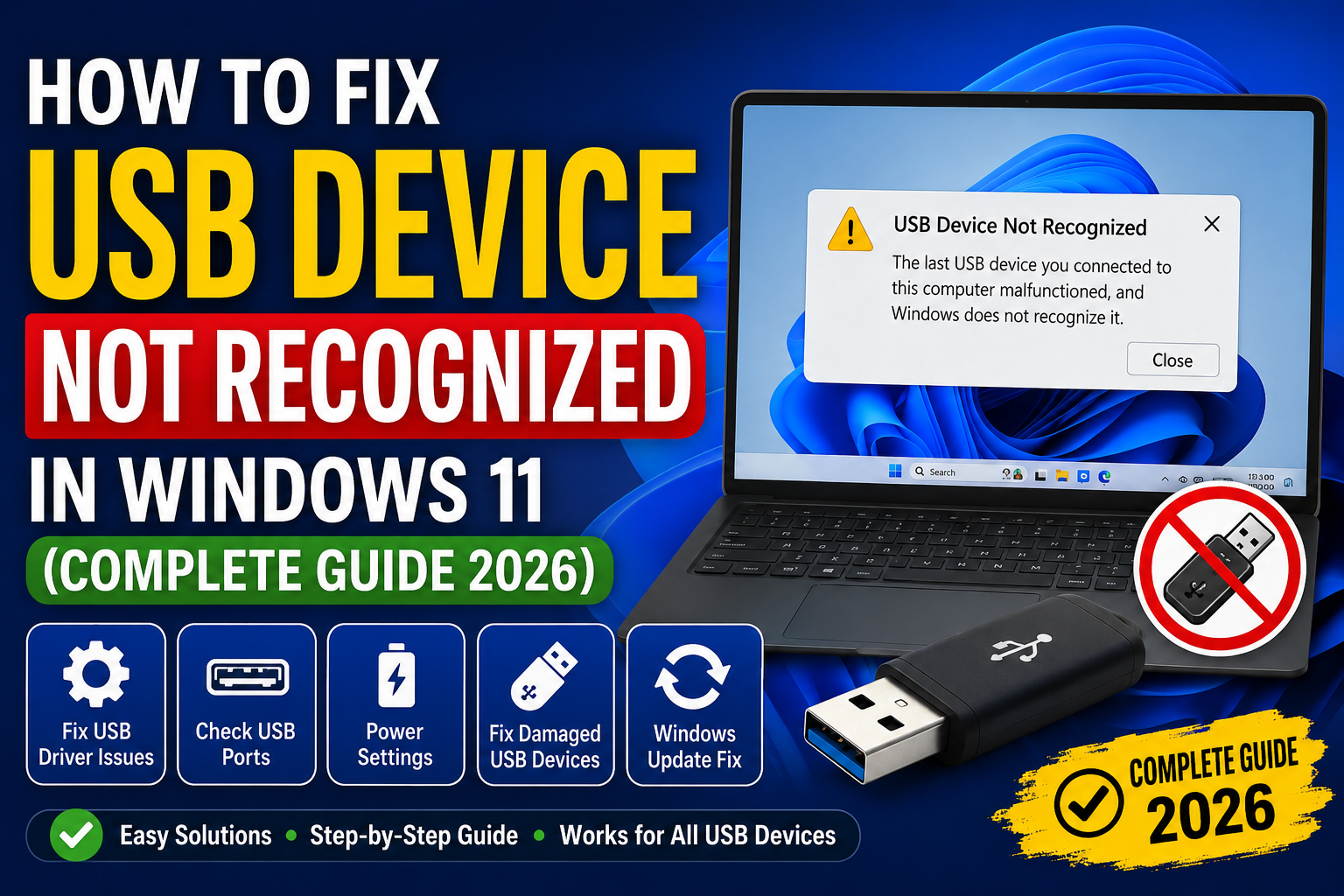
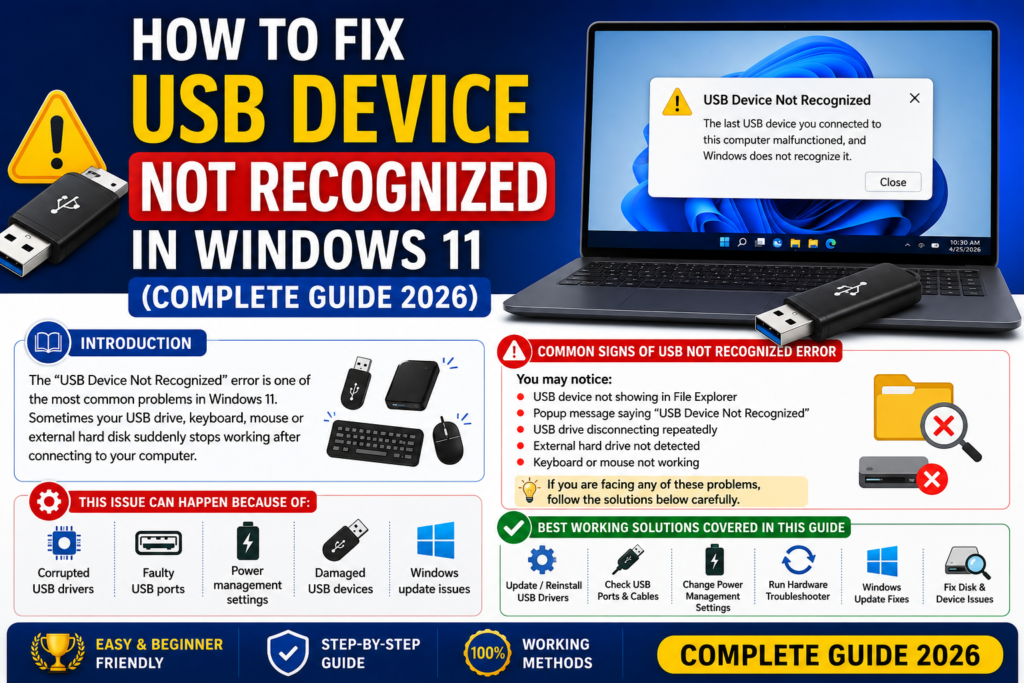
The “USB Device Not Recognized” error is one of the most common problems in Windows 11. Sometimes your USB drive, keyboard, mouse or external hard disk suddenly stops working after connecting to your computer.
This issue can happen because of:
- Corrupted USB drivers
- Faulty USB ports
- Power management settings
- Damaged USB devices
- Windows update issues
The good news is that you can fix this problem easily without technical knowledge. In this guide, you will learn the best working methods to solve the USB not recognized issue in Windows 11.
Table of Contents
Common Signs of USB Not Recognized Error
You may notice:
- USB device not showing in File Explorer
- Popup message saying “USB Device Not Recognized”
- USB drive disconnecting repeatedly
- External hard drive not detected
- Keyboard or mouse not working
If you are facing any of these problems, follow the solutions below carefully.
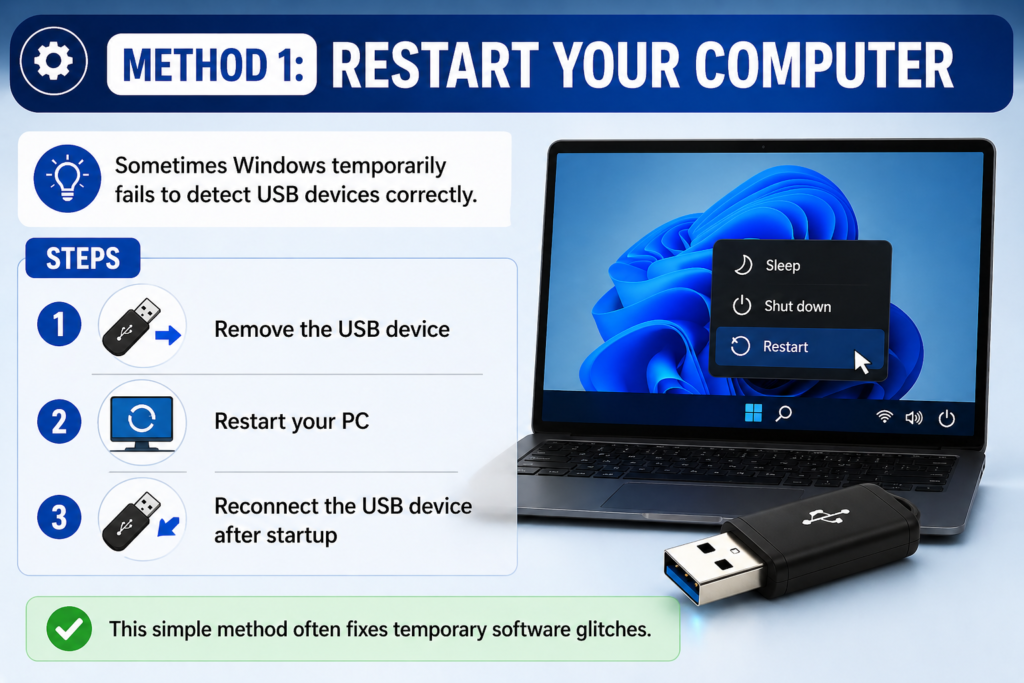
Method 1: Restart Your Computer
Sometimes Windows temporarily fails to detect USB devices correctly.
Steps
- Remove the USB device
- Restart your PC
- Reconnect the USB device after startup
This simple method often fixes temporary software glitches.
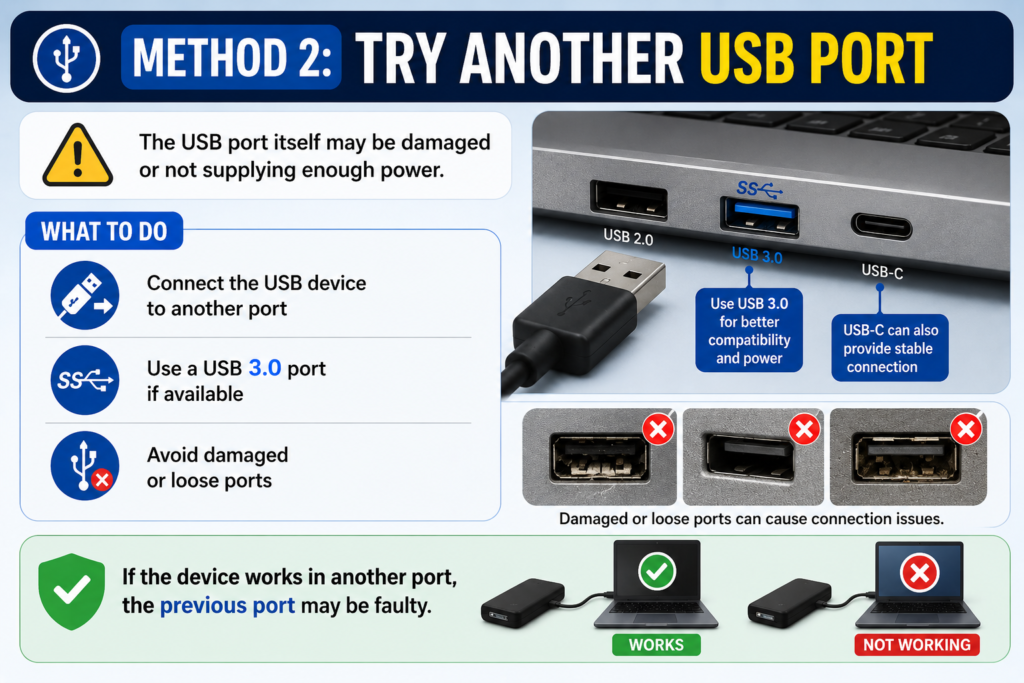
Method 2: Try Another USB Port
The USB port itself may be damaged or not supplying enough power.
What to Do
- Connect the USB device to another port
- Use a USB 3.0 port if available
- Avoid damaged or loose ports
If the device works in another port, the previous port may be faulty.
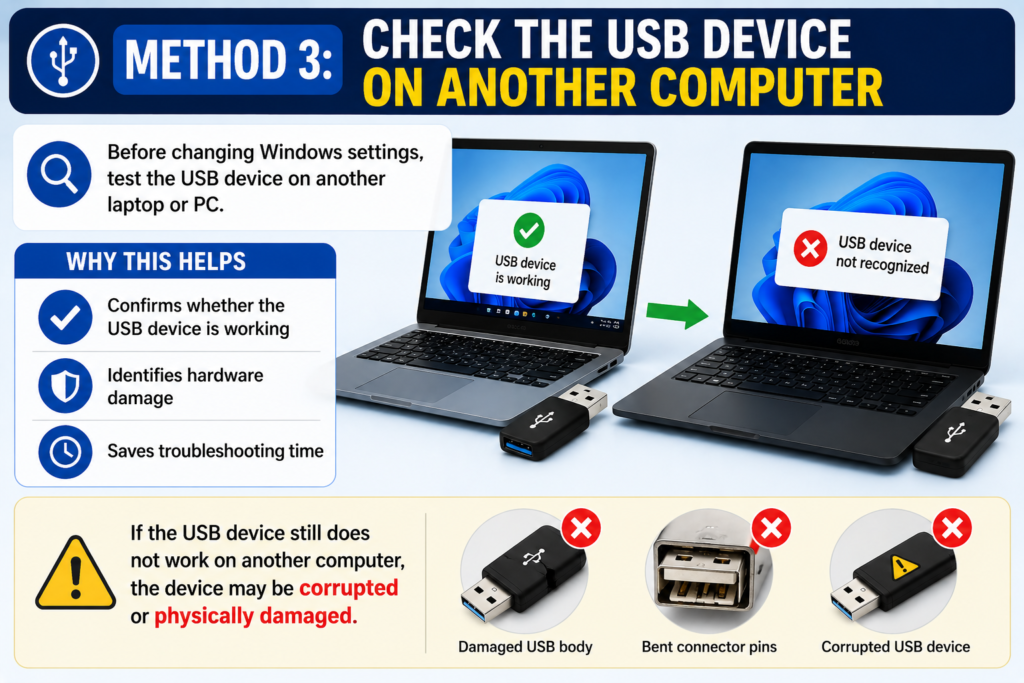
Method 3: Check the USB Device on Another Computer
Before changing Windows settings, test the USB device on another laptop or PC.
Why This Helps
- Confirms whether the USB device is working
- Identifies hardware damage
- Saves troubleshooting time
If the USB device still does not work on another computer, the device may be corrupted or physically damaged.
Method 4: Update USB Drivers
Outdated or corrupted drivers are a major reason behind USB detection problems.
Steps to Update Drivers
- Press Windows + X
- Open Device Manager
- Expand Universal Serial Bus Controllers
- Right-click your USB device
- Click Update Driver
- Select Search Automatically for Drivers
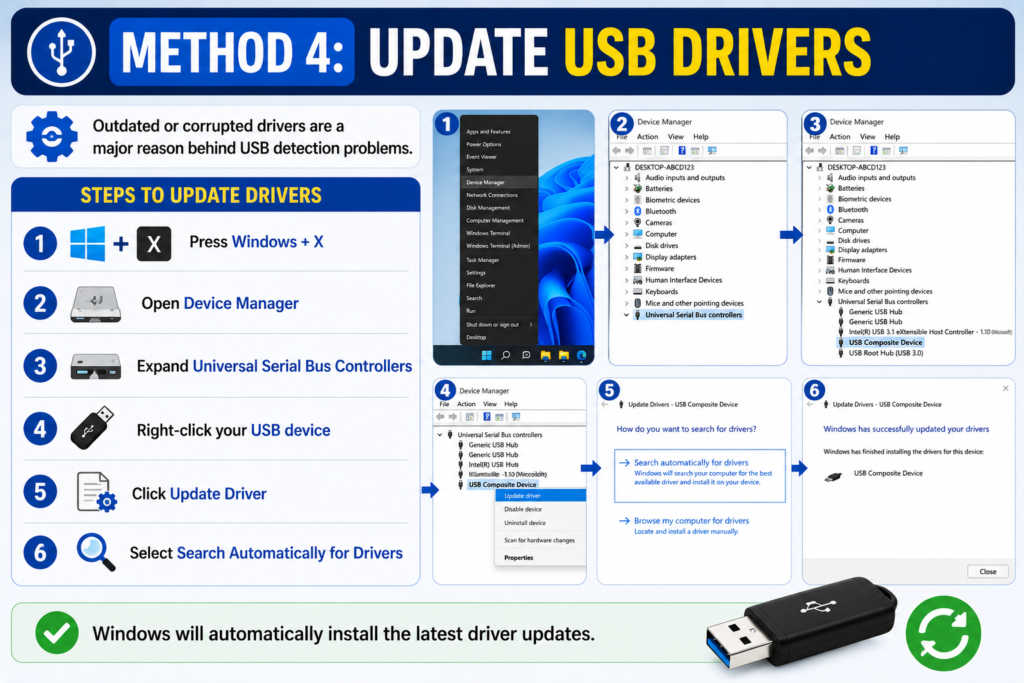
Windows will automatically install the latest driver updates.
Method 5: Reinstall USB Drivers
Reinstalling drivers can fix corrupted USB settings.
Steps
- Open Device Manager
- Expand Universal Serial Bus Controllers
- Right-click the problematic USB device
- Click Uninstall Device
- Restart your computer
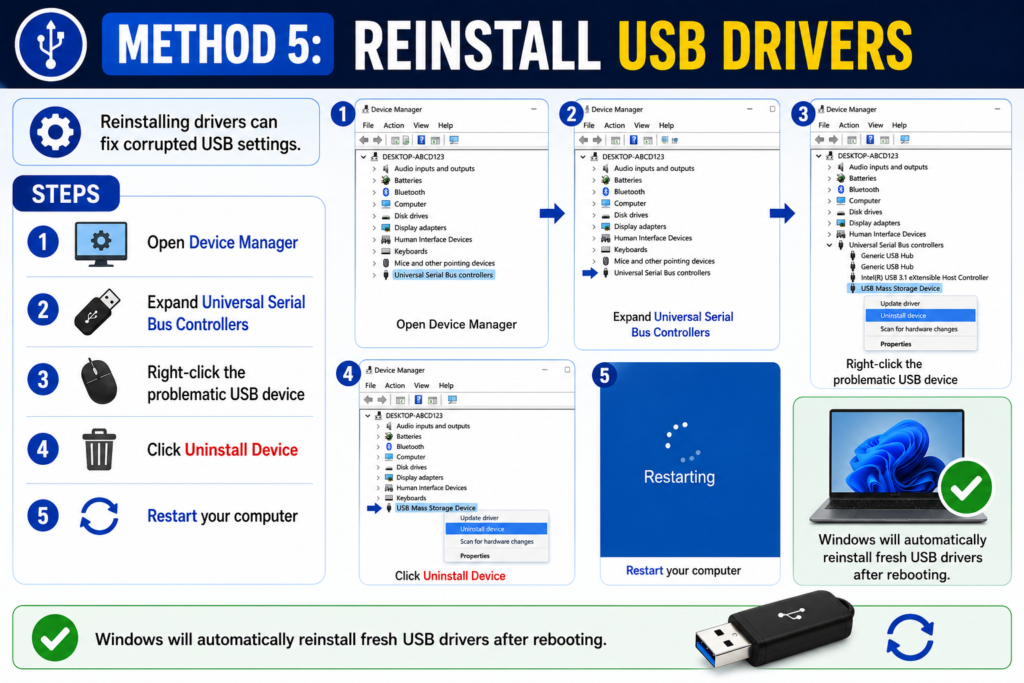
Windows will automatically reinstall fresh USB drivers after rebooting.
Method 6: Disable USB Power Saving
Windows sometimes turns off USB ports to save battery power.
How to Disable USB Selective Suspend
- Open Control Panel
- Click Power Options
- Select your active power plan
- Click Change Advanced Power Settings
- Expand USB Settings
- Disable USB Selective Suspend Setting
- Click Apply
Now reconnect your USB device and check again.
Method 7: Use Disk Management
If your USB drive is not appearing in File Explorer, it may not have a drive letter assigned.
Steps
- Press Windows + X
- Open Disk Management
- Locate your USB drive
- Right-click the drive
- Select Change Drive Letter and Paths
- Add a new drive letter
This method works well for USB flash drives and external hard disks.
Method 8: Run Windows Troubleshooter
Windows 11 includes a built-in troubleshooter for hardware problems.
Steps
- Open Settings
- Go to System > Troubleshoot
- Click Other Troubleshooters
- Run the Hardware and Devices Troubleshooter
Windows will scan and repair common USB issues automatically.
Method 9: Disable Fast Startup
Fast Startup can sometimes interfere with USB detection.
Steps
- Open Control Panel
- Go to Power Options
- Click Choose What the Power Buttons Do
- Select Change Settings Currently Unavailable
- Uncheck Turn On Fast Startup
- Save changes
Restart your computer afterward.
Method 10: Scan for Windows Updates
Old Windows versions may contain USB-related bugs.
Steps
- Open Settings
- Click Windows Update
- Select Check for Updates
- Install all available updates
Keeping Windows updated improves device compatibility and system stability.
Method 11: Check for Hardware Damage
Sometimes the issue is physical rather than software-related.
Check These Things
- Broken USB connector
- Bent USB pins
- Damaged cable
- Dust inside USB port
Cleaning the port gently may help.
Method 12: Recover Data from Corrupted USB
If your USB drive is detected but files are missing, use data recovery software.
Popular Recovery Tools
- Recuva
- EaseUS Data Recovery
- Disk Drill
These tools help recover deleted or inaccessible files.
Best Tips to Avoid USB Problems
Always Safely Remove USB Devices
Avoid unplugging drives suddenly.
Keep Drivers Updated
Regular driver updates improve performance.
Avoid Cheap USB Devices
Low-quality devices fail more often.
Scan USB Drives for Viruses
Malware can corrupt USB storage.
Keep Windows Updated
System updates fix compatibility problems.
